Best Free Speech-to-Text AI: Whisper AI
A clean guide to using OpenAI Whisper in Google Colab to transcribe audio and video for free.
Before You Begin
OpenAI Whisper is one of the easiest free tools for turning audio or video into text. In this guide, I will show you how to use Whisper online with Google Colab, so you do not need to install anything on your computer.
My Personal Use Cases
I use the online version because my hardware is weak, and local transcription takes too long.
Here are the ways I use it:
- Transcribe audio in another language, then send the text to another AI tool for translation.
- I also Transcribe TikTok or YouTube audio into text so I can summarize it or ask questions about it.
What You’ll Need
- A Google account
- An audio or video file to transcribe
Step 1: Open Google Colab
If you have never added Colab to Google Drive before:
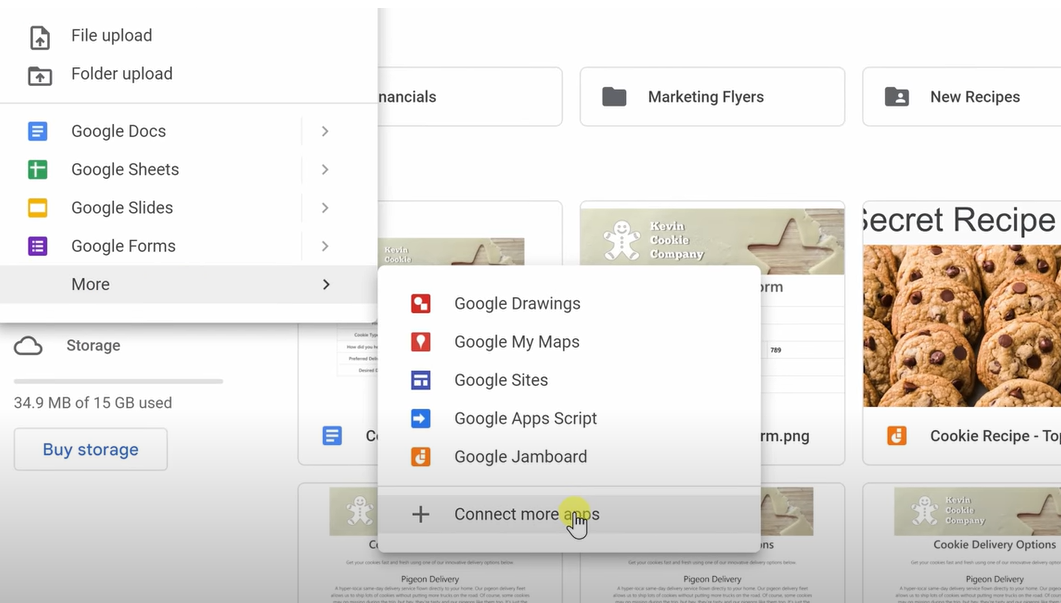
- Go to Google Drive.
- Click
+ New->More->Connect more apps.
- Click the search icon and search for
Colaboratory.
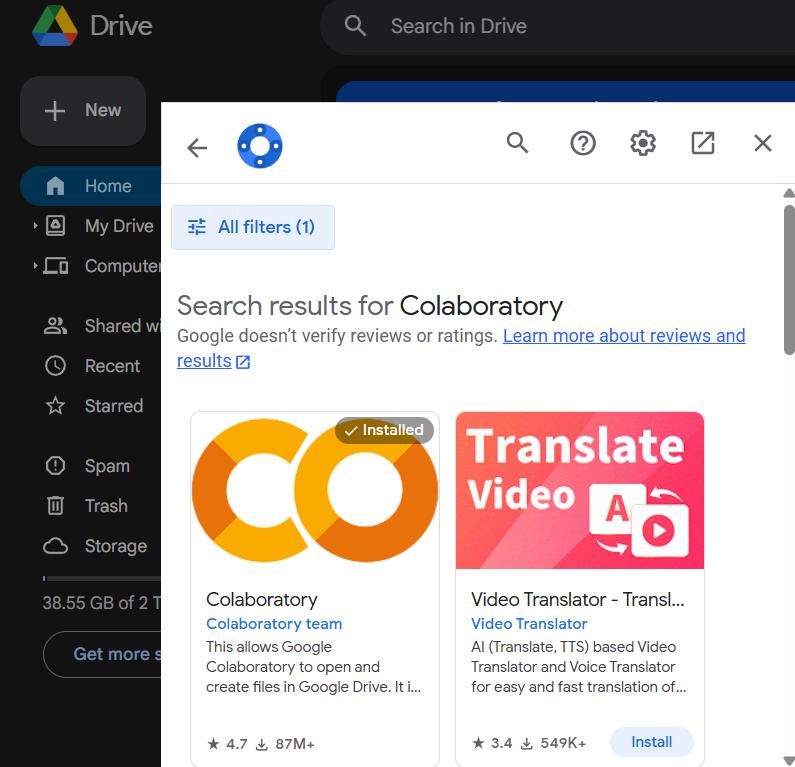
After you do this once, you will not need to repeat it again.
The next time you want to use Whisper:
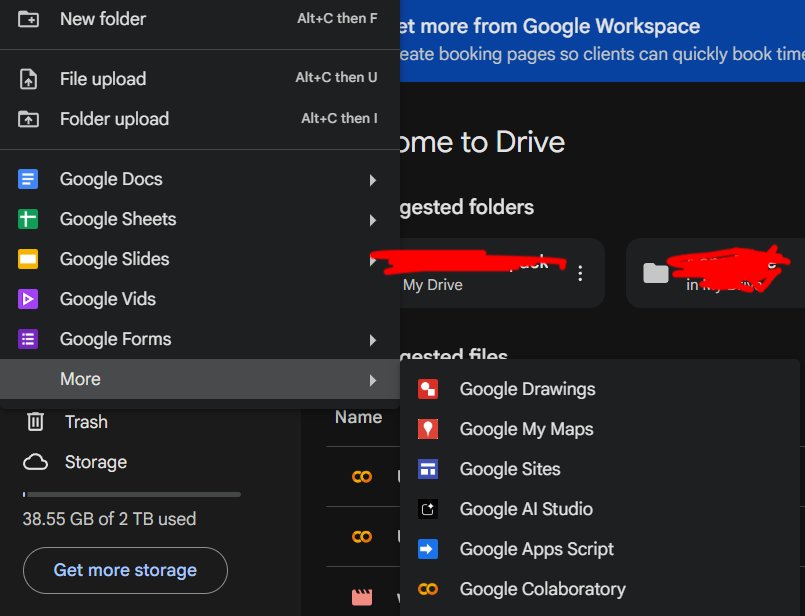
- Go to Google Drive.
- Click
+ New->More->Google Colab.
Step 2: Enable GPU
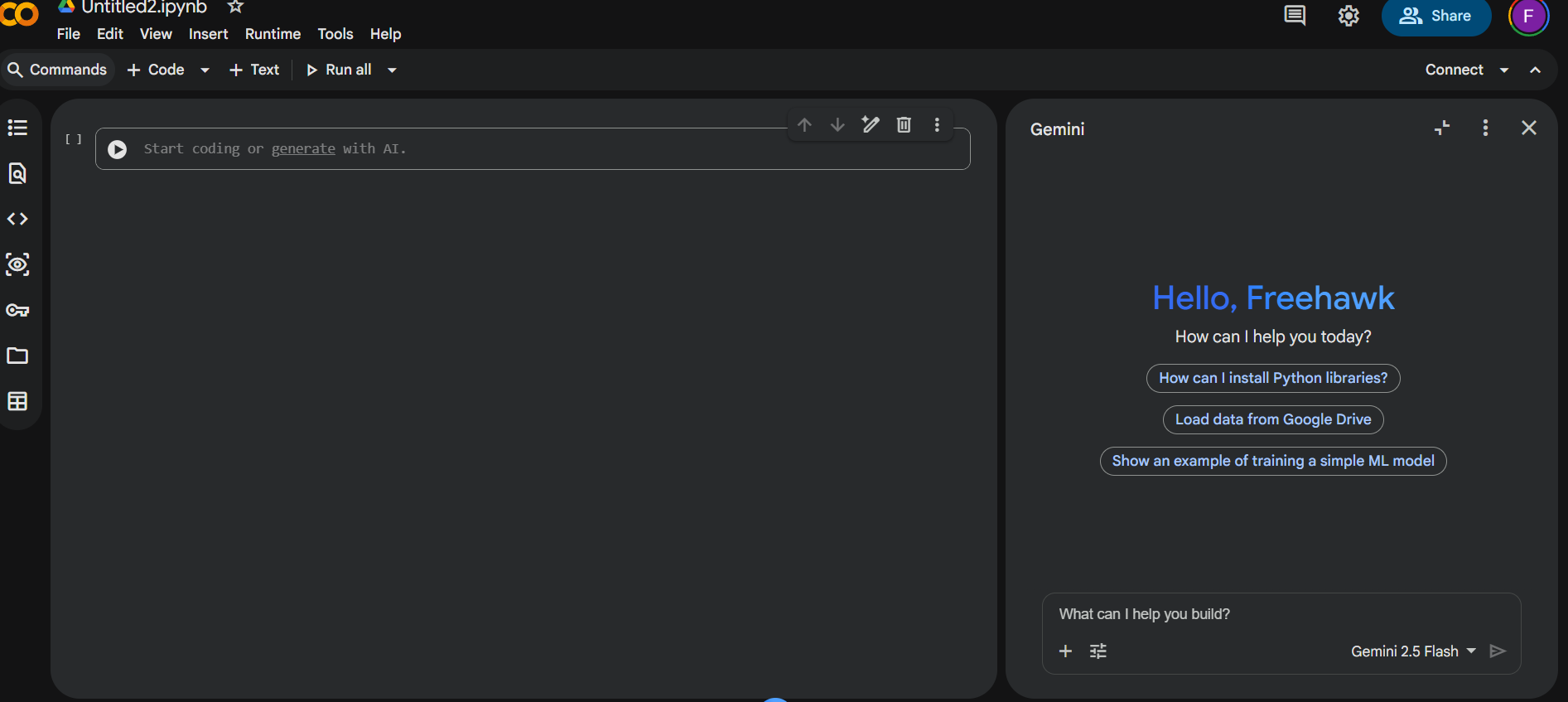
Your screen should look similar to this:
Then:
- Open
Runtime > Change runtime type. - Set
Hardware acceleratortoGPU. - Save the change.
Whisper runs much faster on a GPU than on a CPU in Colab.
Step 3: Install Whisper and FFmpeg
Paste this into the first cell and run it:
1
2
3
!pip install -U openai-whisper
!sudo apt update
!sudo apt install ffmpeg -y
This installs Whisper and FFmpeg, which Colab uses to read common audio and video formats.
Wait until everything finishes installing.
Step 4: Upload Your File
- Create a new code cell.
- Click the folder icon in the left sidebar.
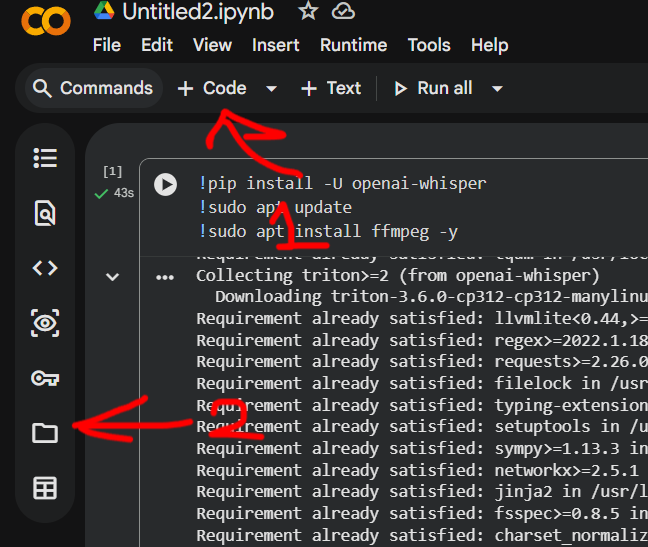
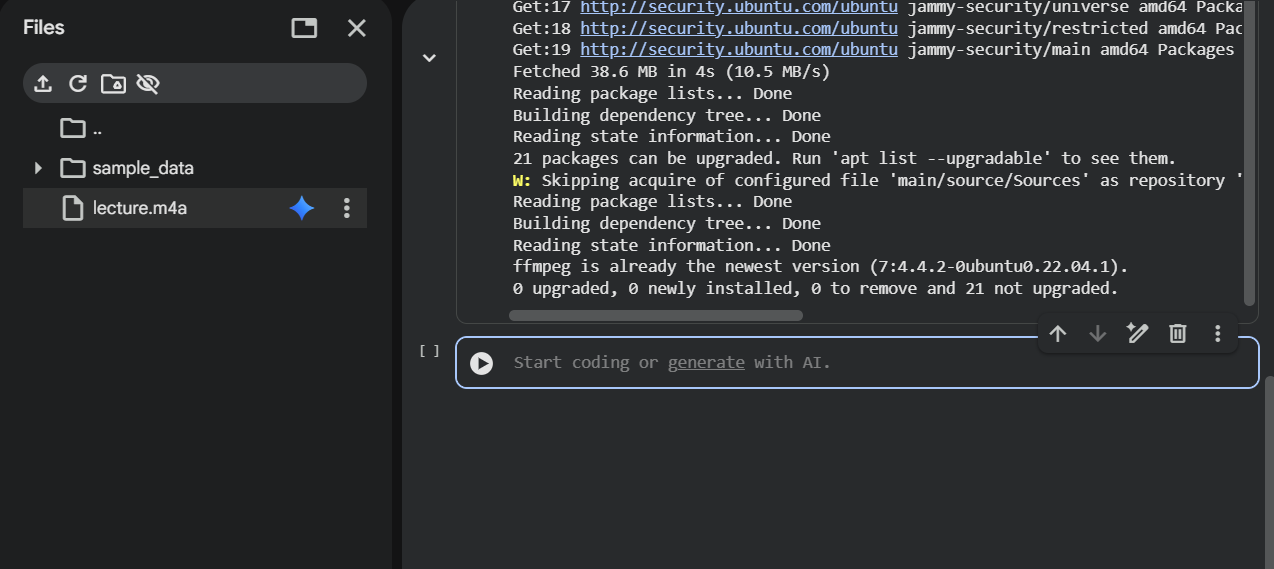
- Upload the audio or video file you want to transcribe.
- Note the exact filename, such as
interview.mp3orlecture.mp4.
Step 5: Run Whisper
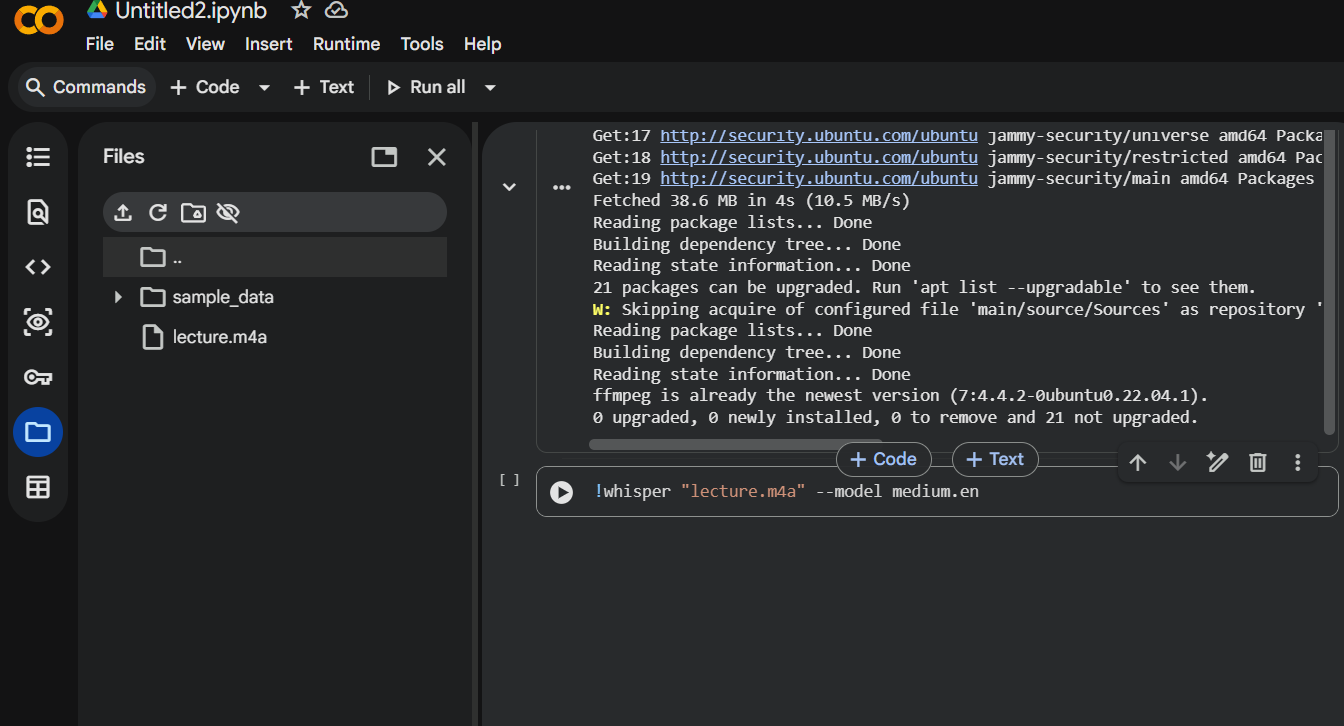
Paste this into a new cell:
1
!whisper "your-file-name.mp3" --model medium.en
Replace your-file-name.mp3 with your actual filename.
Example:
Model Options
tiny.en: fastest, lowest accuracybase.en: slightly better accuracysmall.en: good balance for quick jobsmedium.en: better accuracy, slowerlarge: best quality, slowest and heaviest
If your audio is not in English, use small, medium, or large instead of an English-only model.
Output Files
After the command finishes, Whisper usually creates:
your-file-name.txtfor plain textyour-file-name.srtfor subtitlesyour-file-name.vttfor web captions
You can download them from the file browser in the left sidebar.
Common Issues
The Filename Does Not Work
Make sure the filename matches exactly.
Transcription Is Slow
Use GPU runtime and try a smaller model like base.en or small.en.
Final Thoughts
Whisper is one of the best speech-to-text tools I have used. I mainly use it for audio in languages I do not understand, and it saves me a lot of time.
If you have any questions or suggestions, let me know.
Resources