How to Get Google Services on Huawei (microG & Aurora Store)
A comprehensive guide to installing MicroG and Aurora Store to use Google apps on Huawei devices running EMUI or HarmonyOS.
What is this guide?
This guide shows you how to install microG Services together with the Aurora Store. This combination allows you to use most Google-dependent apps on Huawei devices (EMUI / HarmonyOS) that don’t come with Google Mobile Services (GMS) pre-installed.
Whether you’re a tech expert or a complete beginner, this guide is designed for you.
⚡ The Quick Guide (For Power Users)
If you already know your way around Android and just need the links, here is the summary.
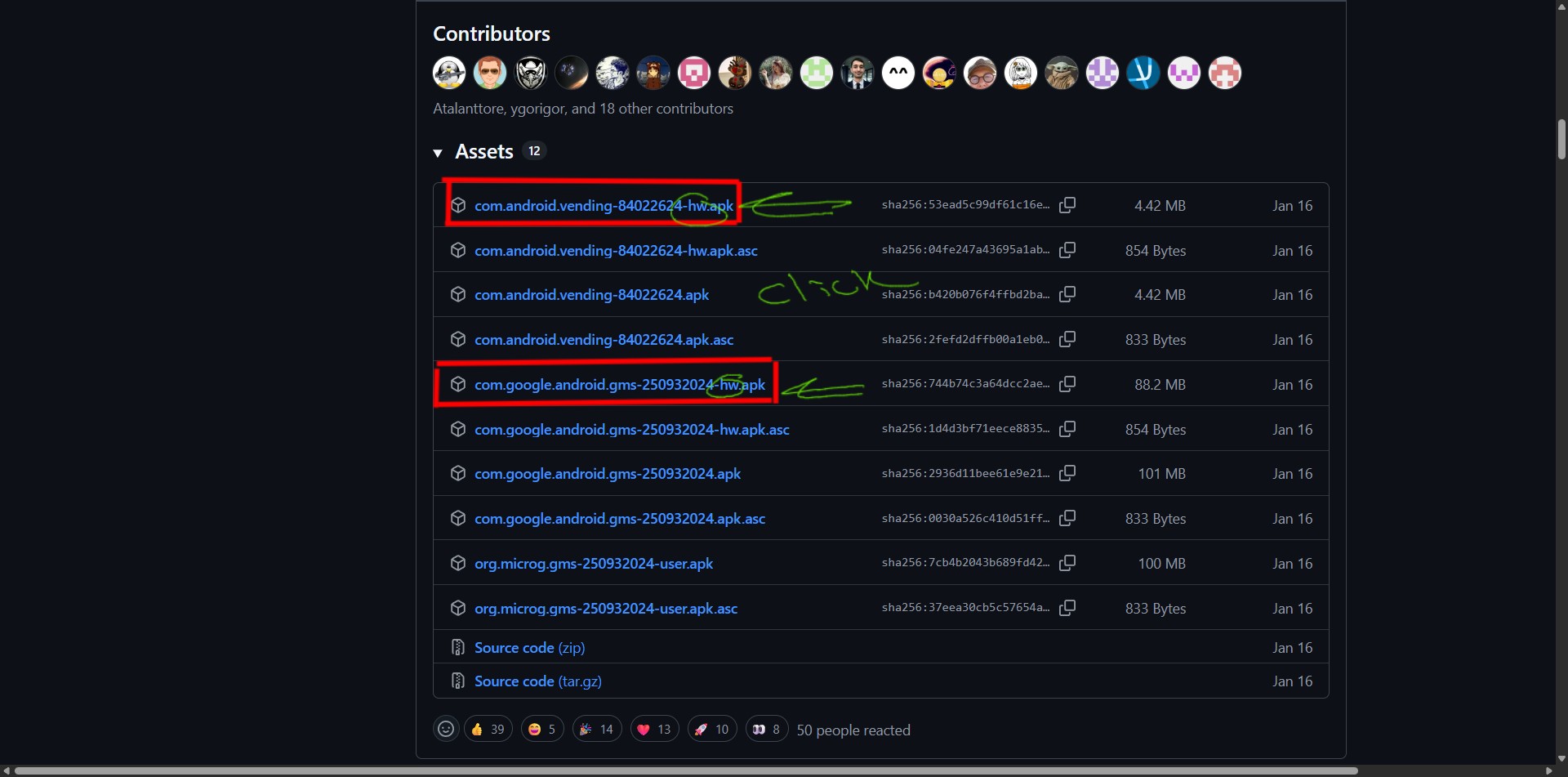
- Download microG: GitHub Release (Look for -hw.apk)
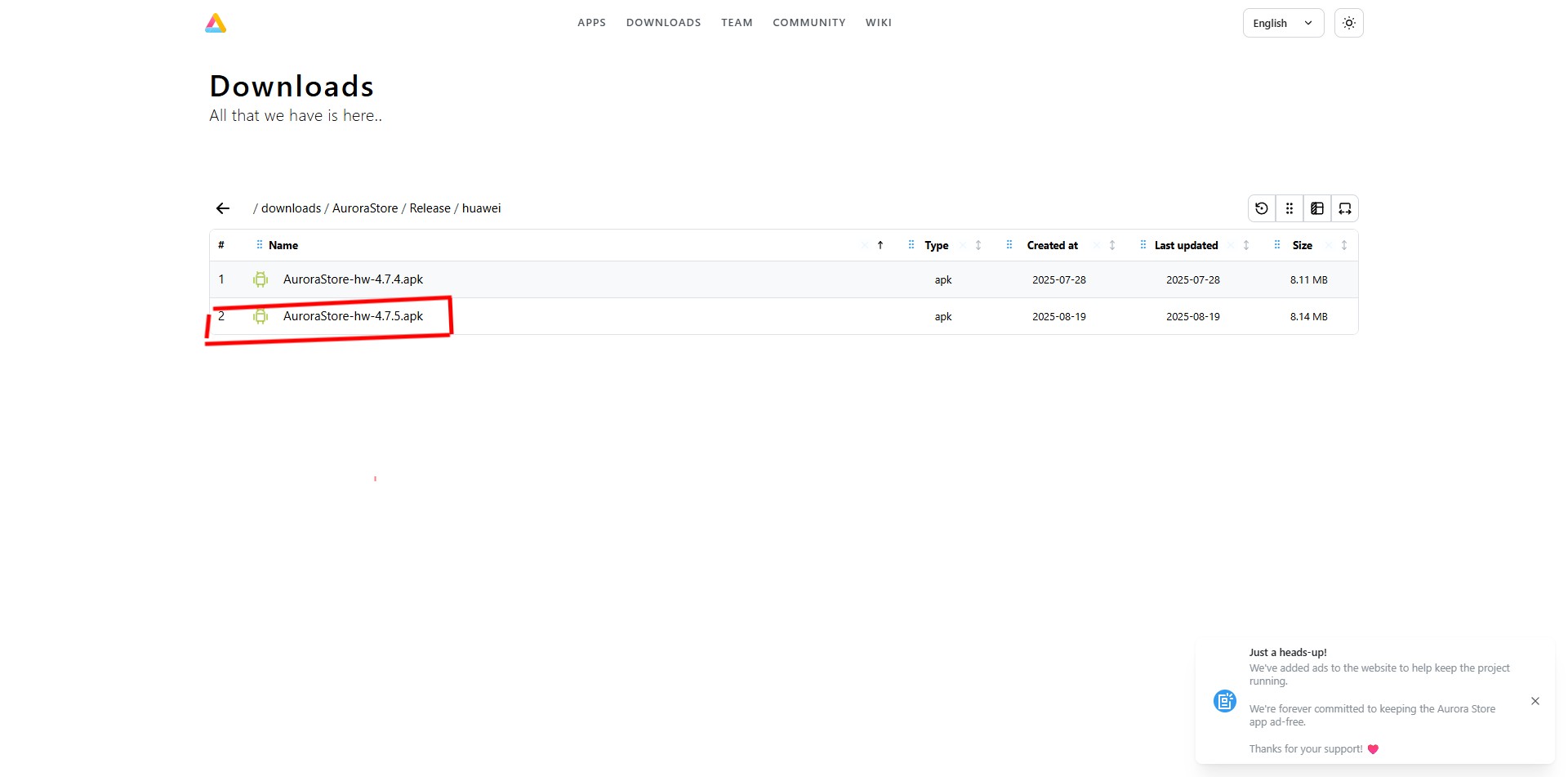
- Download Aurora Store: Official Website
- Install Both: Install the Latest APKsa for Both.
- Permissions: Open microG → Self-Check → Grant ALL permissions.
- Done: Login to Aurora Store and start downloading apps.
📘 The Detailed Guide (Step-by-Step)
If you want a walkthrough with pictures and more explanation, follow this section.
Step 1: Download and Install microG
What is it? microG is the brains of the operation. It tricks apps into thinking your phone has official Google Services installed.
- Download the APK: Go to the microG GitHub releases page.
- Link: microG GmsCore (GitHub)
- Important: Scroll down to “Assets” and find the file ending in
-hw.apk(this version is optimized for Huawei).
Install: Tap on the downloaded file. If prompted, allow installation from your browser.
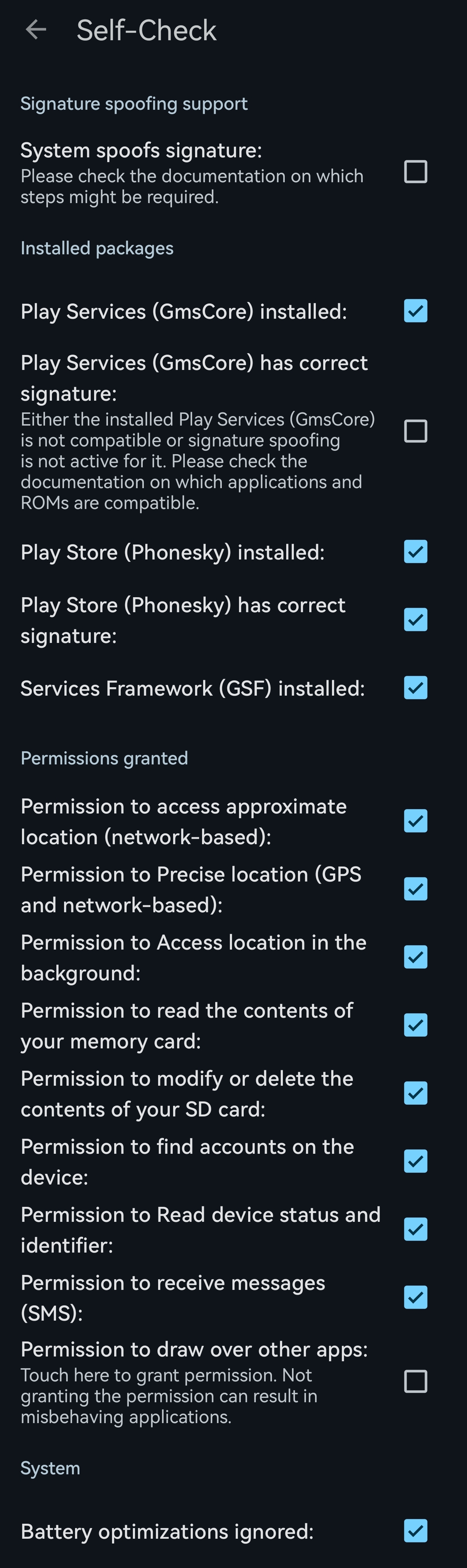
- Grant Permissions (Crucial Step):
- Open the microG Settings app.
- Tap on Self-Check.
- You will see a list of checkboxes. Use my Settings in the picture Below & allow the permission it asks for.
- Goal: Make sure you do the same as the image below
Why? If you don’t do this, some apps may have delayed notifications or doesn’t send you notifications at all.
Step 2: Install Aurora Store
What is it? Aurora Store is your new Open Source “Play Store.” It connects directly to Google’s servers so you can download official apps.
- Download: Go to the official website.
- Link: AuroraOSS Huawei
- Download the Latest Release
Install: Open the APK and install it.
- Setup:
- Open the app and follow the welcome screen.
- When asked for permissions (Installer, Storage, etc.), grant them all. This allows the store to install apps automatically for you.
Step 3: Login and Use
You have two choices when you open the store:
- Google Login: Use your real Google account. (Recommended)
- Pros: Access your paid apps and wishlist.
- Cons: Small risk of Google limiting the account (haven’t seen a case, but possible).
- Anonymous Login: Use a secure, anonymous account.
- Pros: Safer, no tracking.
- Cons: Can’t download paid apps & some downtimes.
Once you’re in, search for an app (like Gmail or Google Maps) and install.
FAQ & Troubleshooting
- “Installation Failed”: Make sure you downloaded the
-hwversion of microG. - “Notifications aren’t working”: Go back to microG Settings > Cloud Messaging and make sure it’s turned ON.
- “Can I use Google Pay?”: Unfortunately, no. Google Pay requires strict security checks that usually fail on devices without official GMS.
🤝 Community & Support
A big thank you to the following communities for supporting this guide. If you need more help or want to discuss Huawei devices, consider joining them:
- Huawei Subreddit Discord - Join their Discord
References
- Reddit: How to get Google Services the safest way
- AuroraOSS Official Site
- Reddit: How to use Huawei devices without Google