How to Use PSNTools Avatar Adder & Collection
Step-by-step guide on using PSNTools to add PlayStation avatars to your cart and check out through the Avatar Adder & Collection tool.
Make sure your NPSSO cookie is fresh before using PSNTools. Sign out of PSN and sign back in if needed. NPSSO guide here.
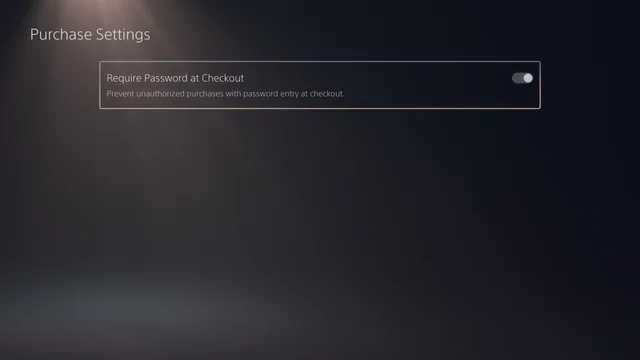
Before you start, make sure password during checkout is disabled in your PSN account settings. You can change this under your PlayStation account settings.
If you don’t disable it, the checkout process will keep asking you to enter your password every time and will fail.
Step 1: Go to Avatar Adder & Collection
On the PSNTools main page, look for the Avatar Adder & Collection section. Click it
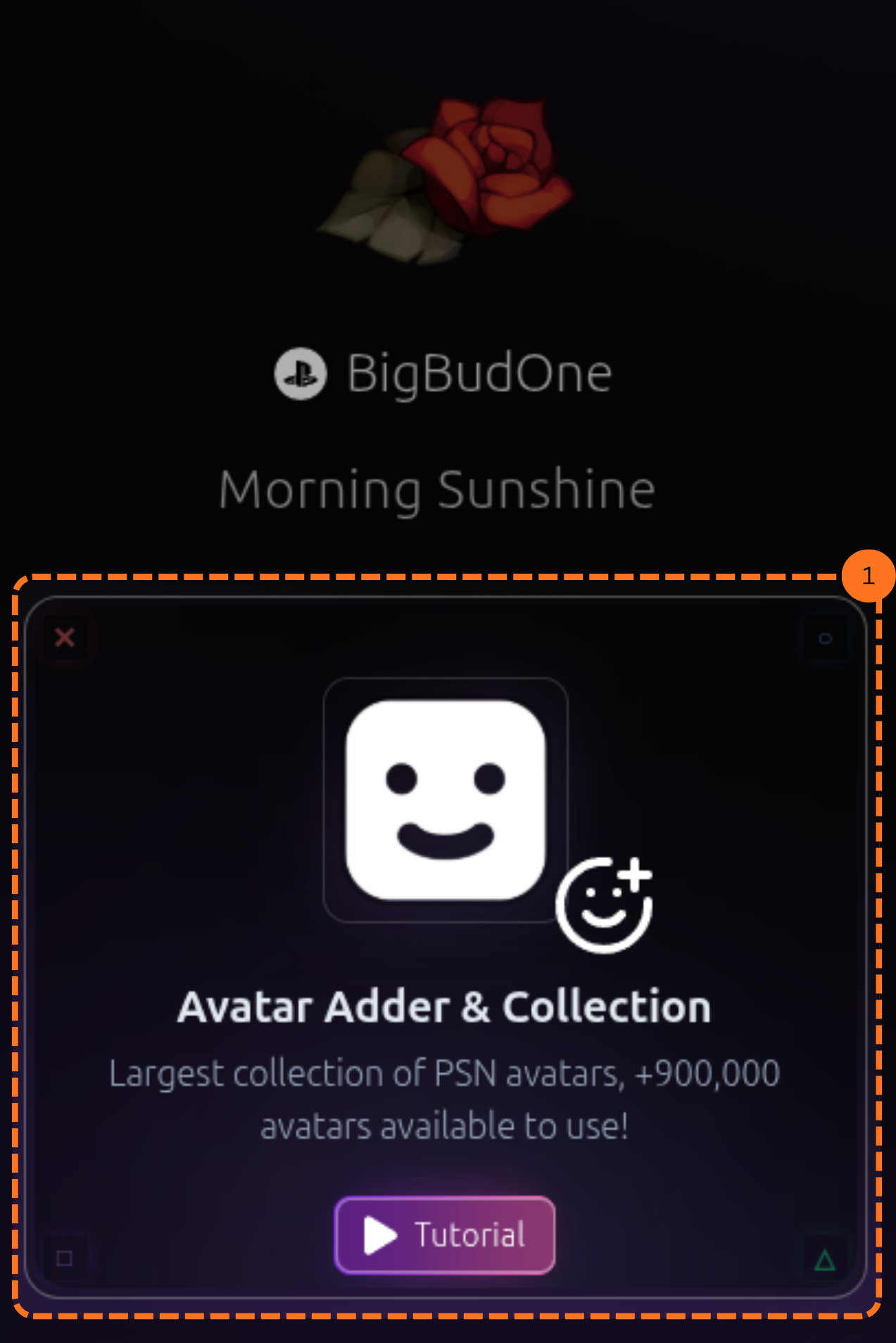
Step 2: Add an Item to Your Cart
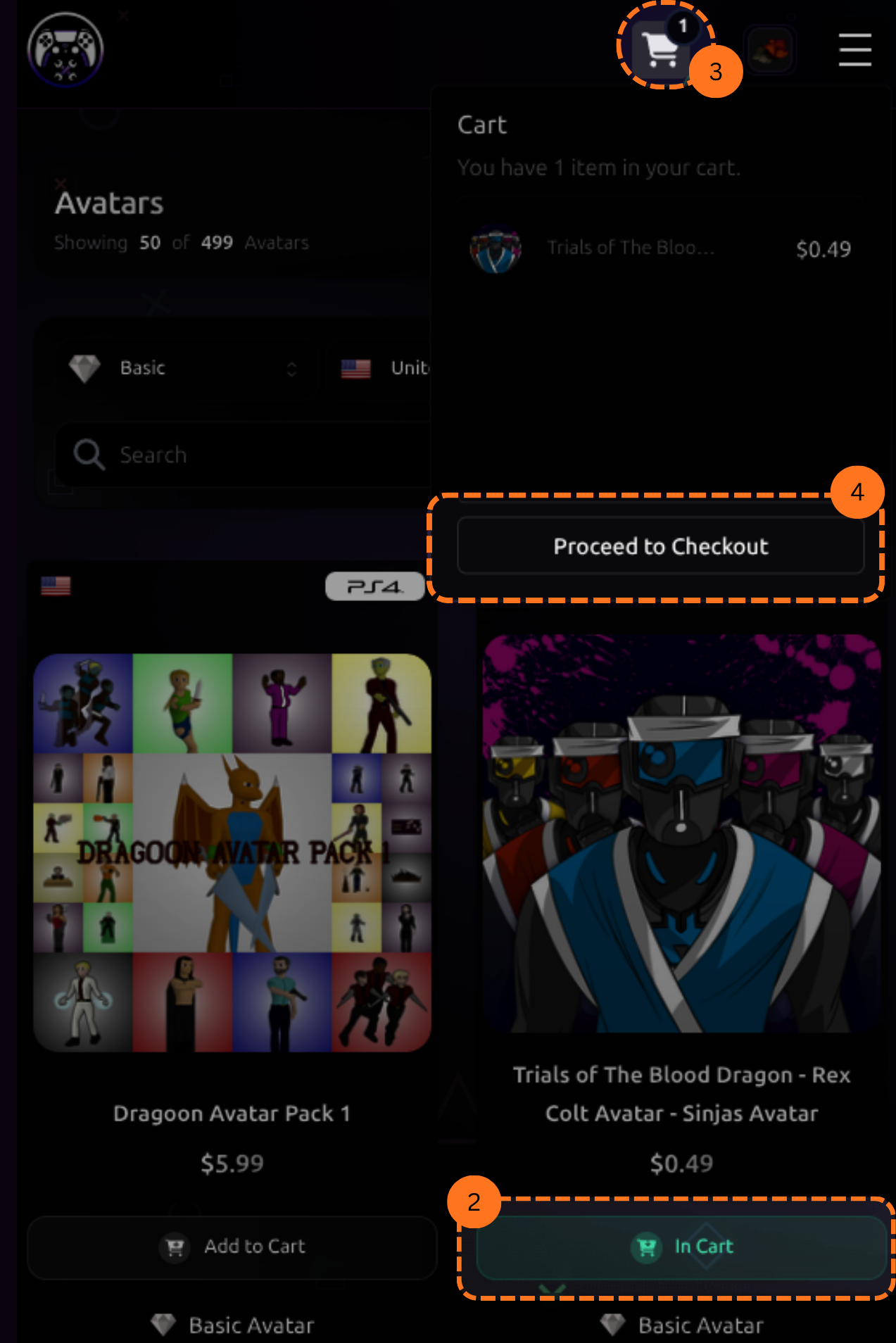
- Once you are in the section, choose an avatar or item & click Add to Cart.
- After adding items, click the cart icon in the top right corner to review your selection.
- A pop-up will appear showing your cart. Click Proceed to Checkout to move forward.
Step 5: Checkout Your Cart
- On the next page, click Checkout Cart to complete the purchase. Make sure you have sufficient wallet funds in your PSN account.
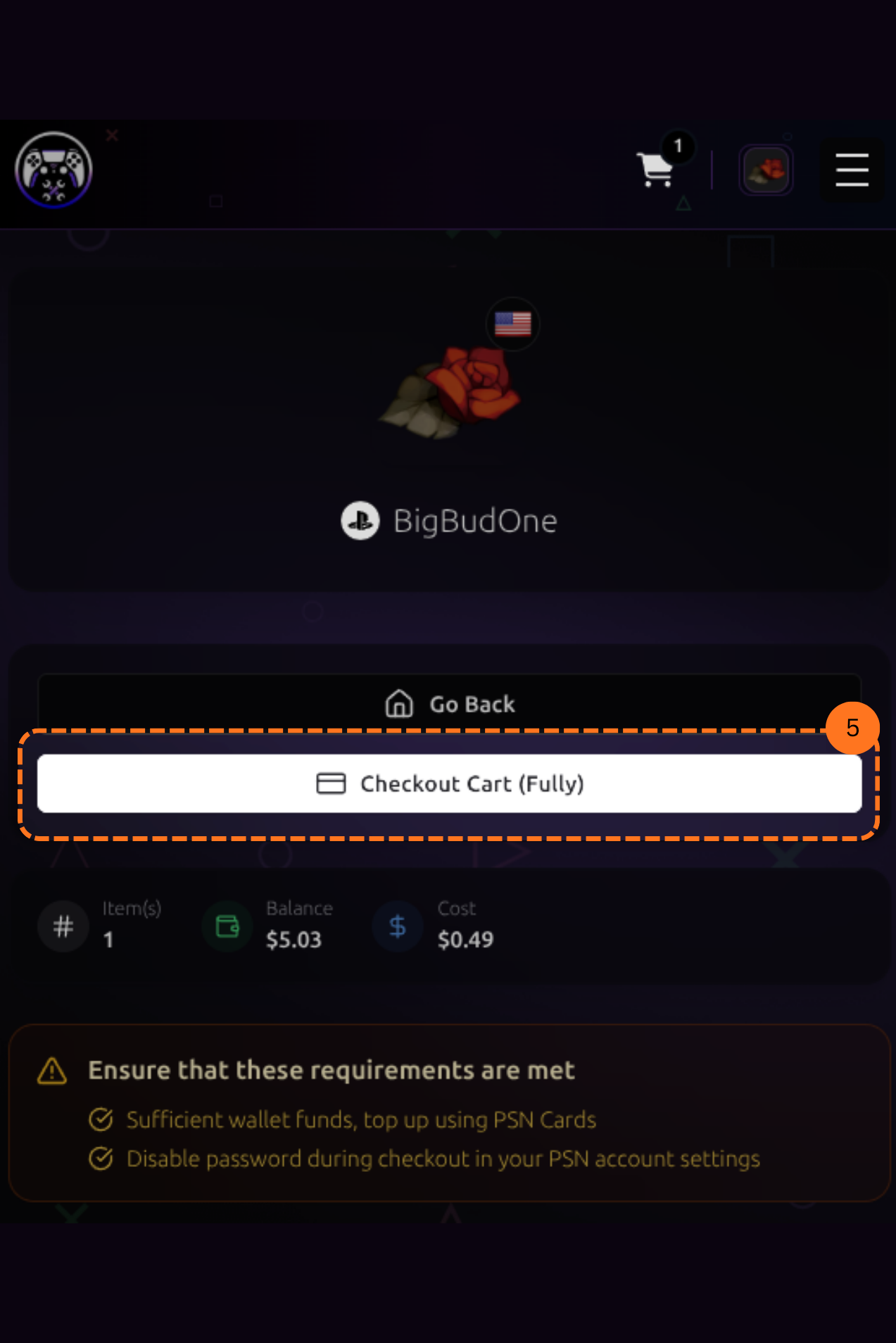
Make sure password during checkout is disabled in your PSN settings before doing this, or the checkout will fail.
If you don’t have a PSNTools account yet, check out the guide on how to create one.