Post

How to Create a PSNTools Account

Step-by-step guide to creating & verifying a PSNTools account, from NPSSO authentication to email verification, membership, & account management.

How to Create a PSNTools Account

Before We Begin

In this post we will guide you on how to sign up for a new account on PSNTools, a service that gives you deeper access to your PlayStation Network data. You’ll need to authenticate using your NPSSO token from PlayStation.com.

Now we have to mention that PSNTools provides unofficial tools & services for PlayStation Network users, & that PSNTools is not affiliated with Sony or PlayStation. It’s a tool for the community, made by the community.

What You’ll Need:

  • A PlayStation Network account
  • A web browser with two tabs open
  • Access to your PSN account email
  • About 5-10 minutes

A Summary of What We’ll Do

  1. Sign out & back in on PlayStation.com to refresh your NPSSO token.
  2. Use that token to authenticate with PSNTools.
  3. Verify your email to activate the account.
  4. Explore your account dashboard & settings.

Step 1: Sign Up on PSNTools

Open two browser tabs, one for PSNTools & one for PlayStation.com.

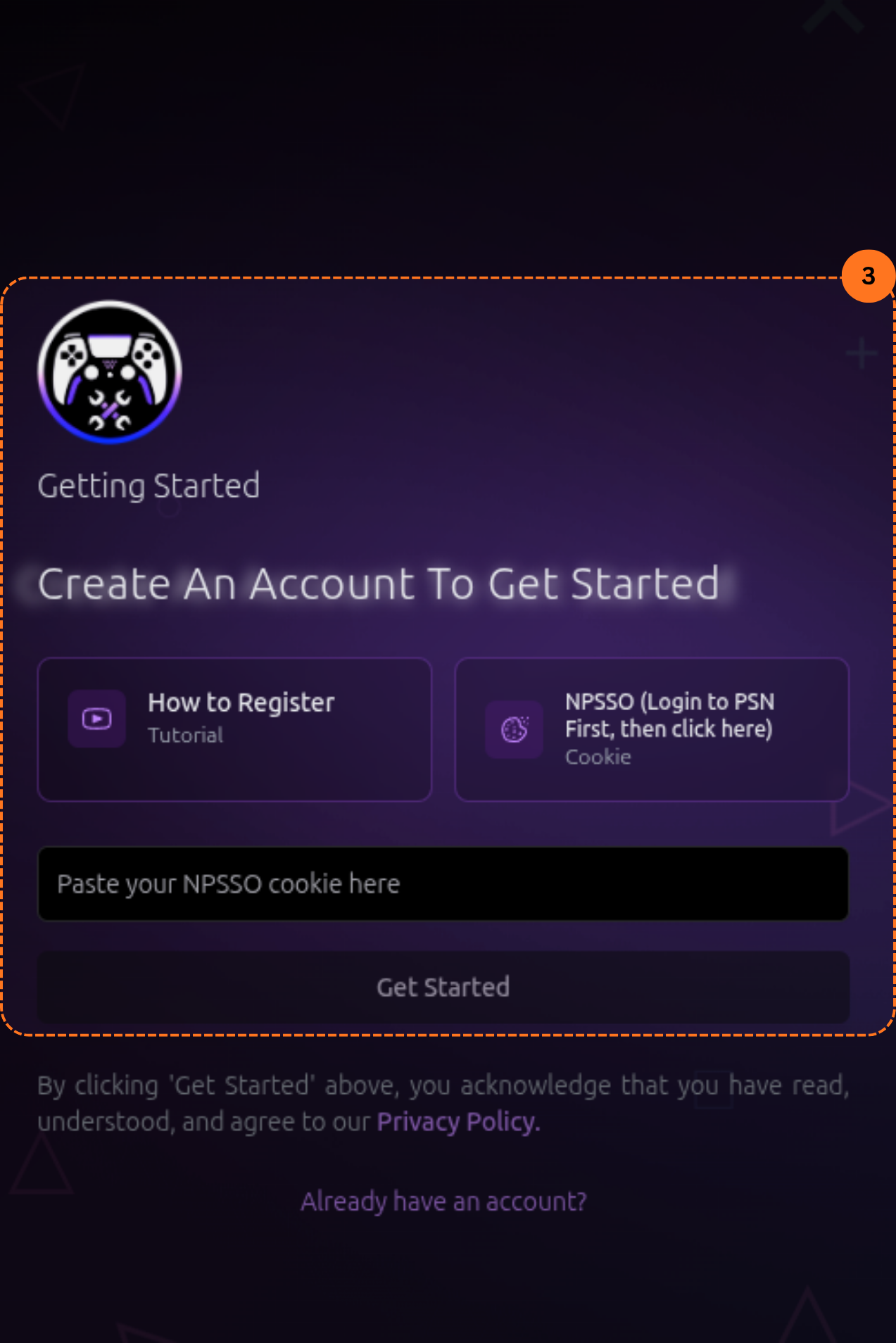
On PSNTools, go to the sign-up page here.

PSNTools sign-up page

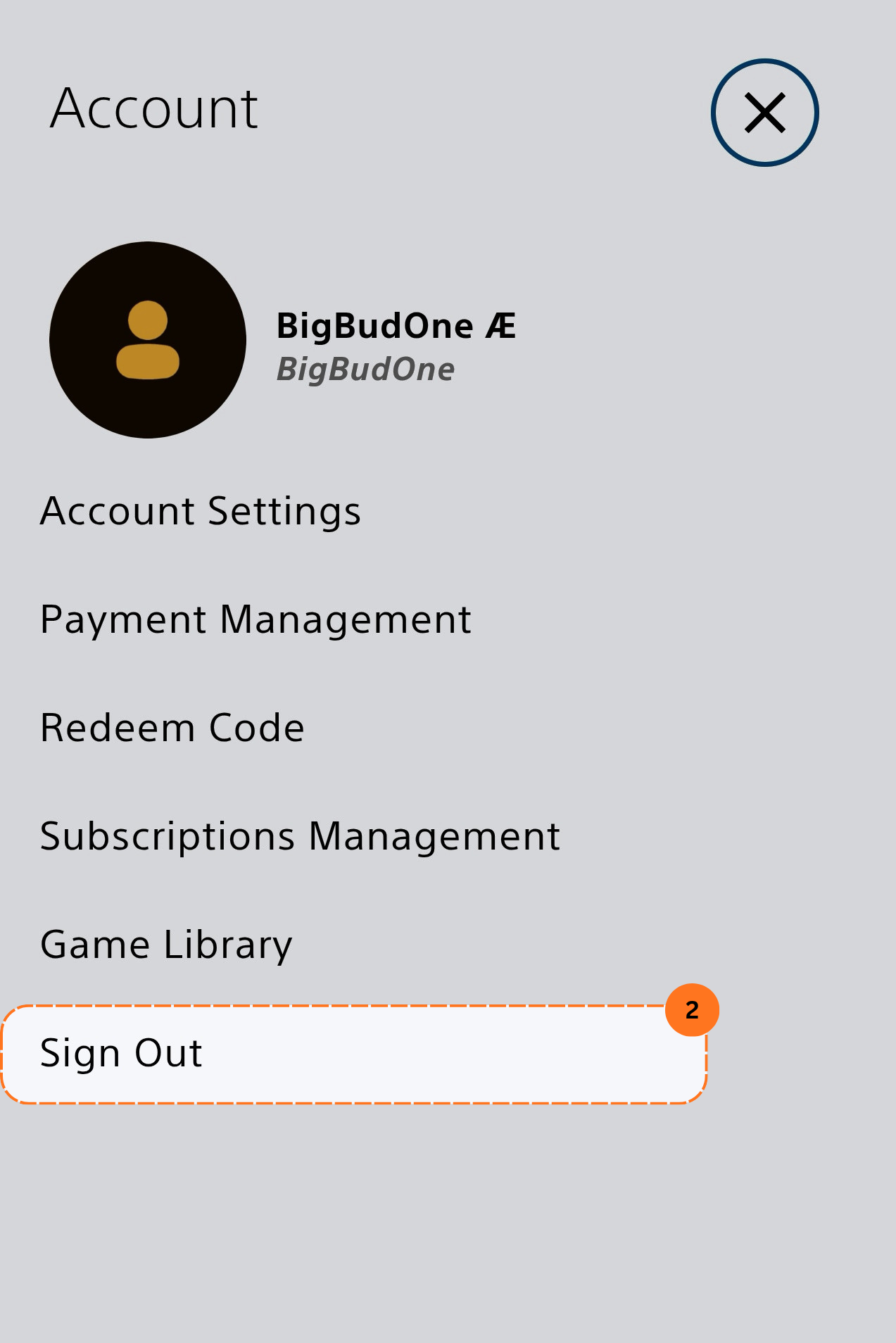
Then on PlayStation.com, sign out of your account & then sign back in.

This refreshes your NPSSO token, which PSNTools needs to authenticate you.

Sign out of PlayStation.com


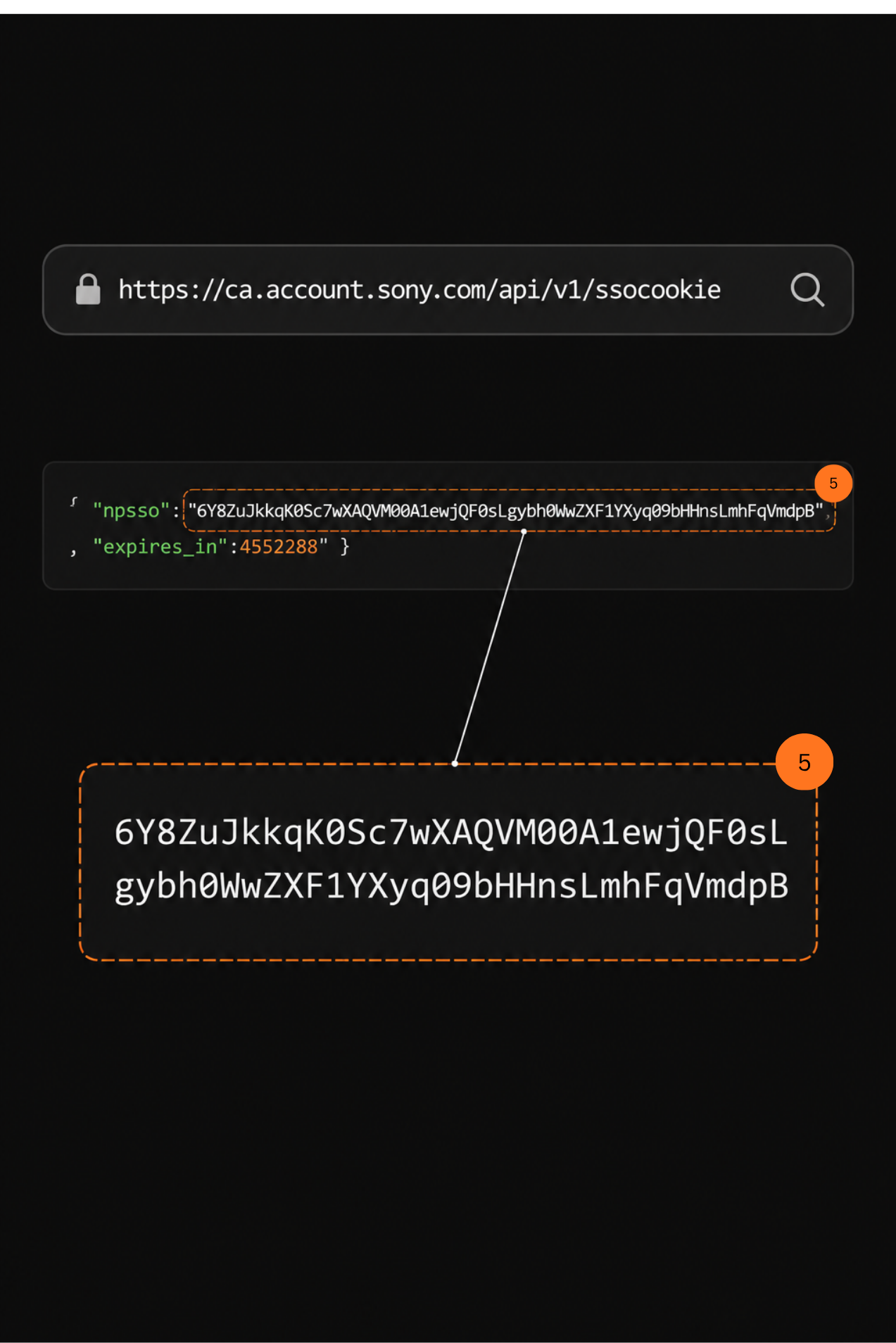
After signing back in to PlayStation.com:

NPSSO cookie string

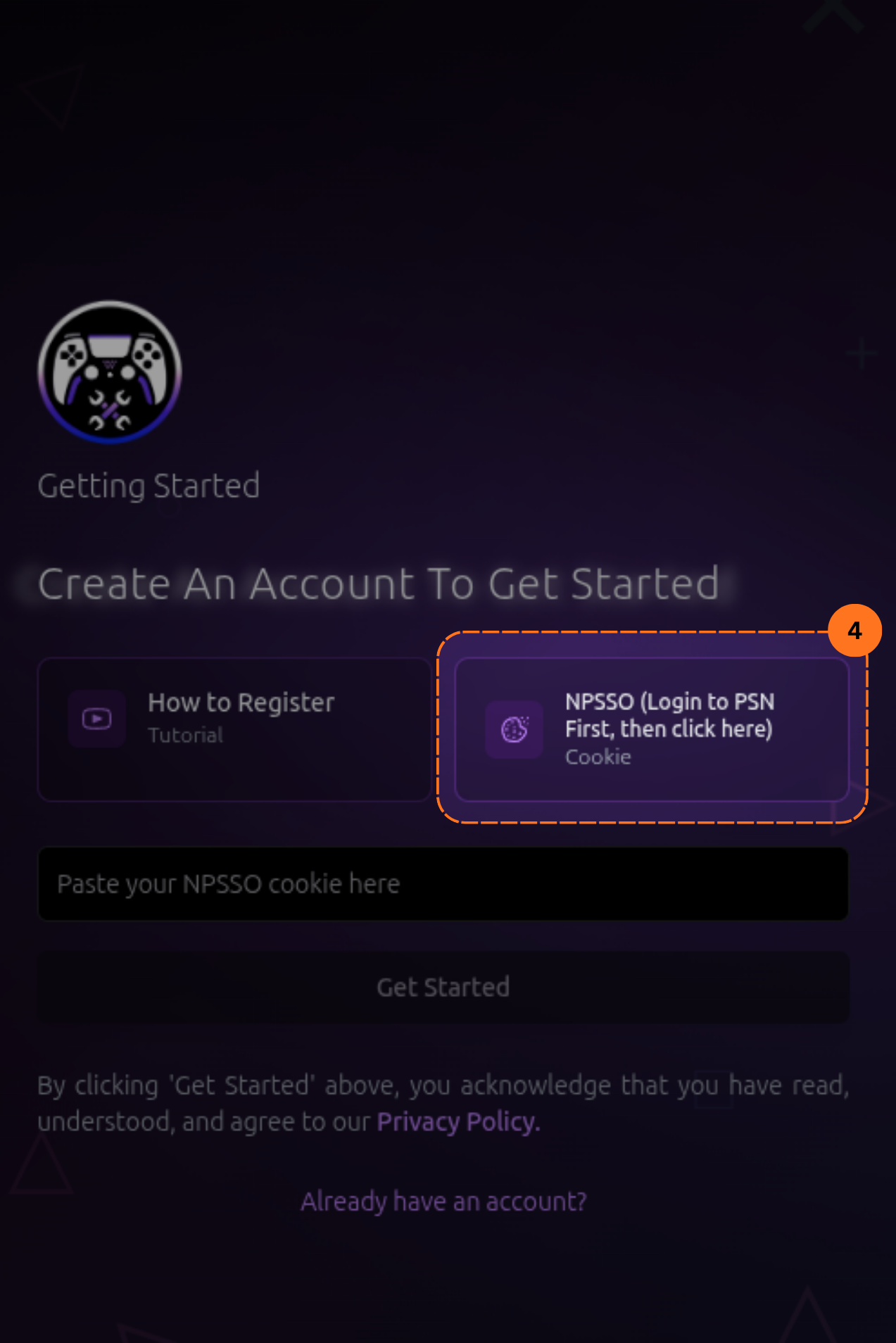
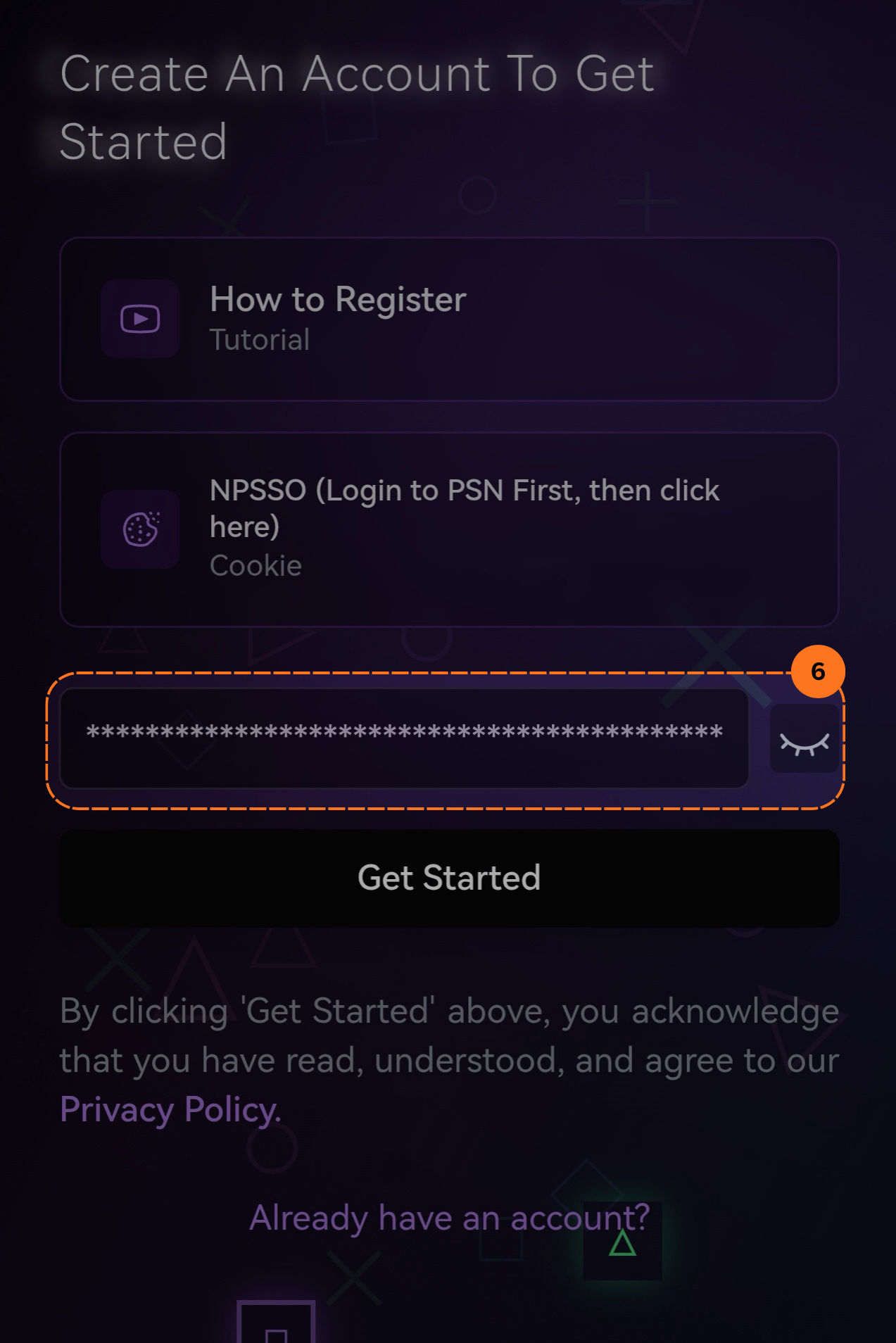
Go back to PSNTools & click NPSSO. You’ll see a long string. That’s your cookie. Copy it. Paste NPSSO cookie into PSNTools

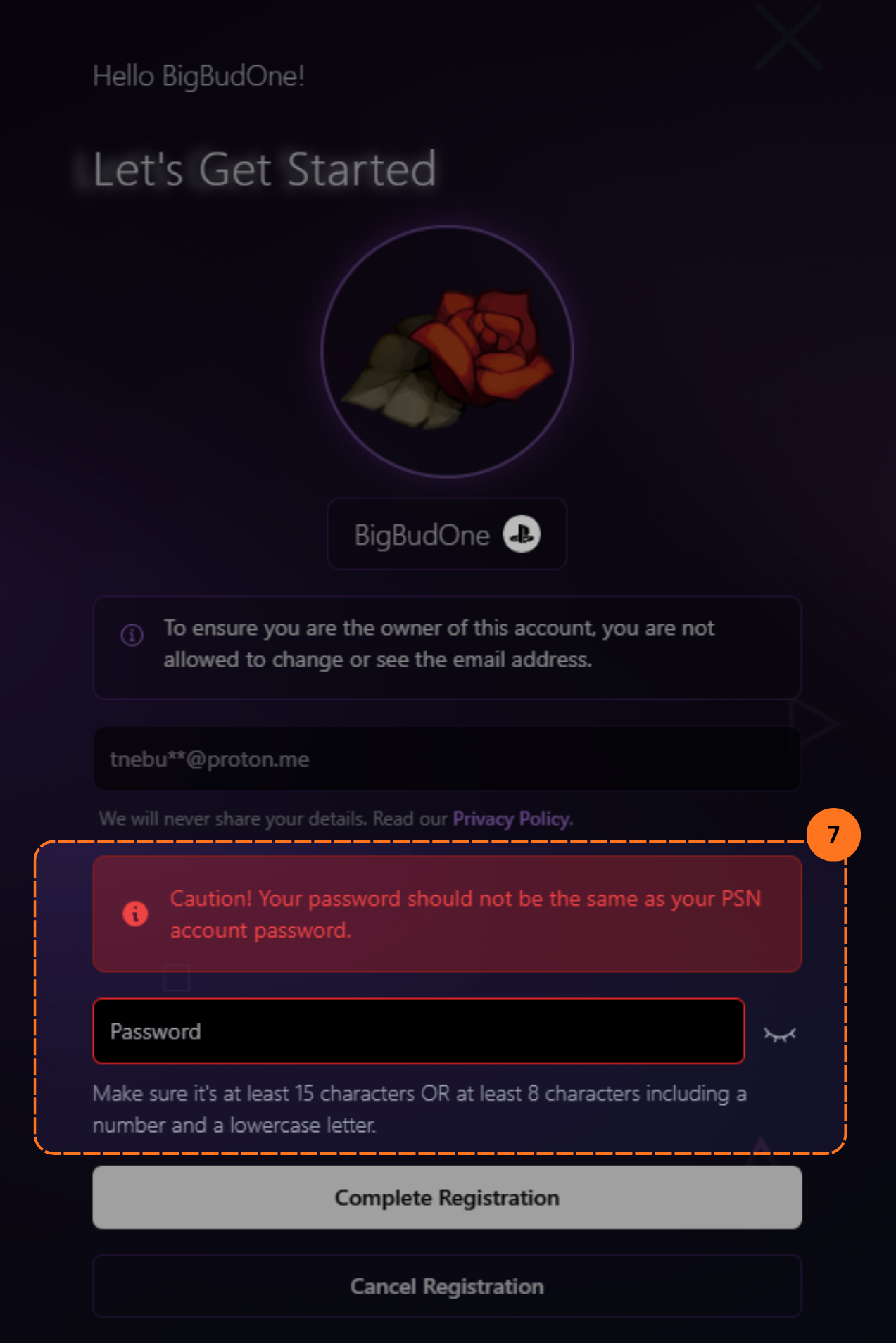
Paste the cookie into the PSNTools login form. It should look something like this: NPSSO cookie string

If you already have an account linked to this PSN, you may see a message saying “Heads up! This account already exists. Want to update it with the new details?”, click Yes, update account to proceed.

PSNTools login form

Account already exists, update prompt


Step 3: Verify Your Email

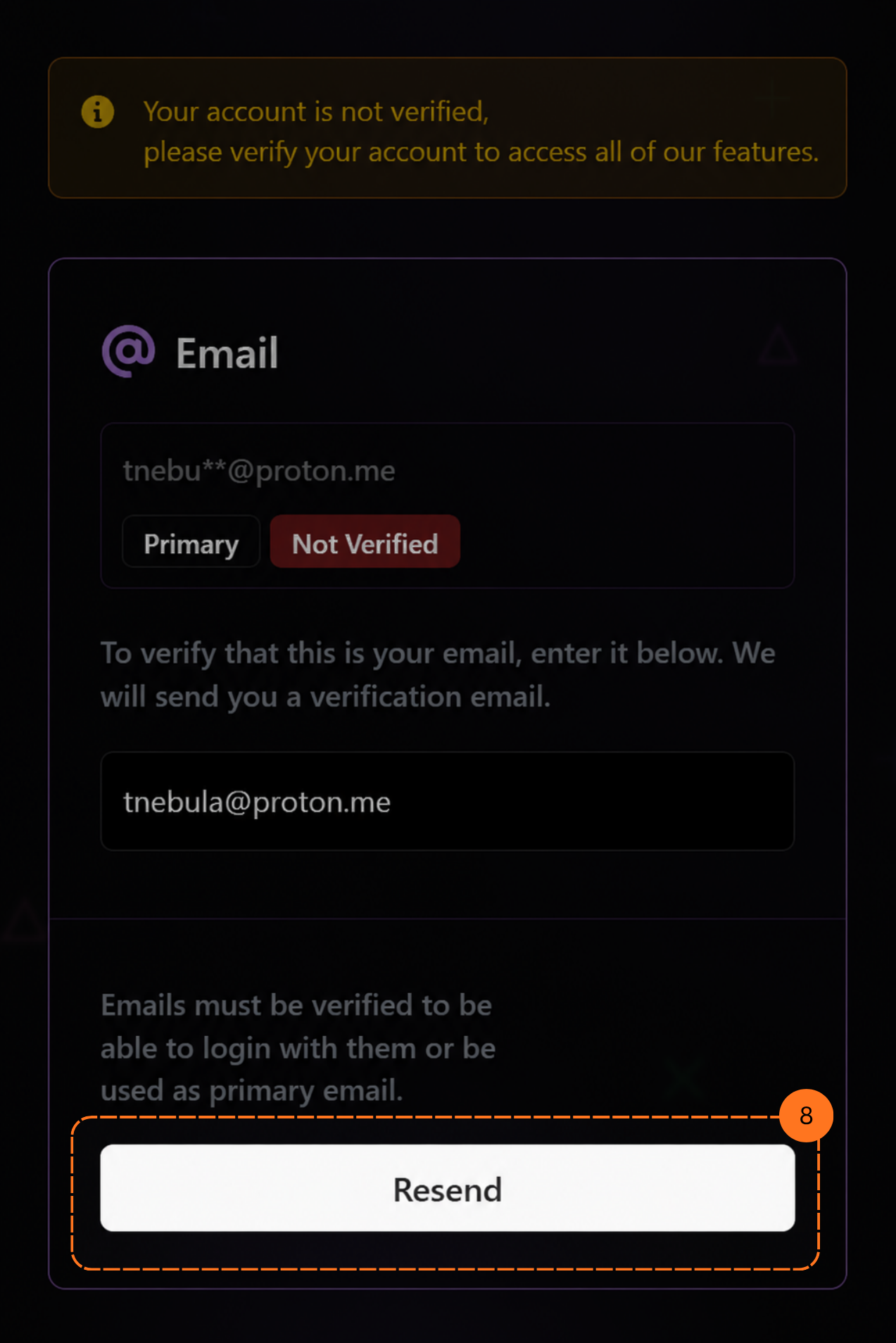
After logging in, you’ll be told your account is not verified. Enter the same email associated with your PlayStation account & click Resend. PSNTools verification email

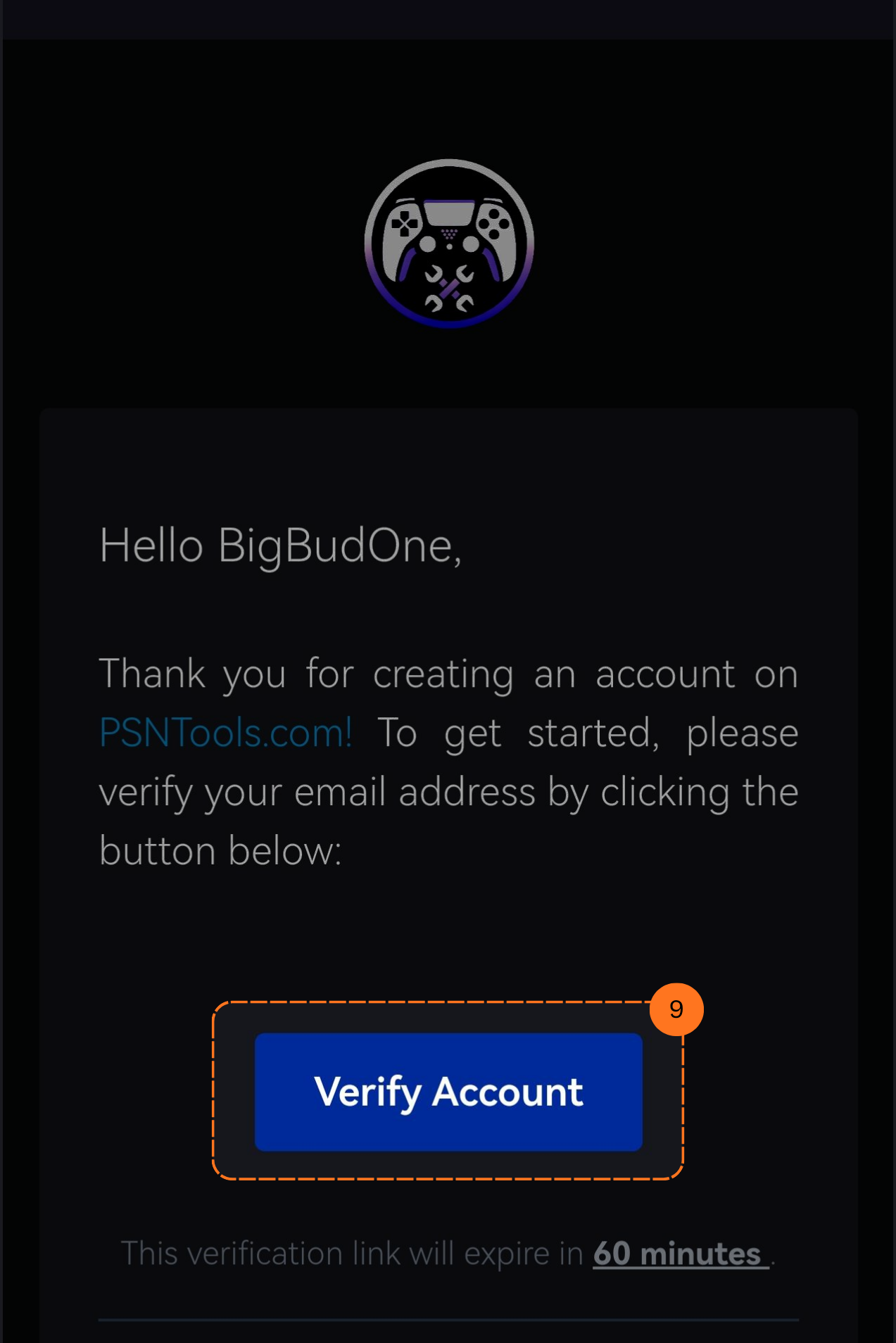
Check your inbox for an email from PSNTools that you received, then click the verification button inside the email.

Account verification required

Important: The verification link expires in 60 minutes. Check your spam folder if you don’t see it, & note the email may be delayed by a few minutes.


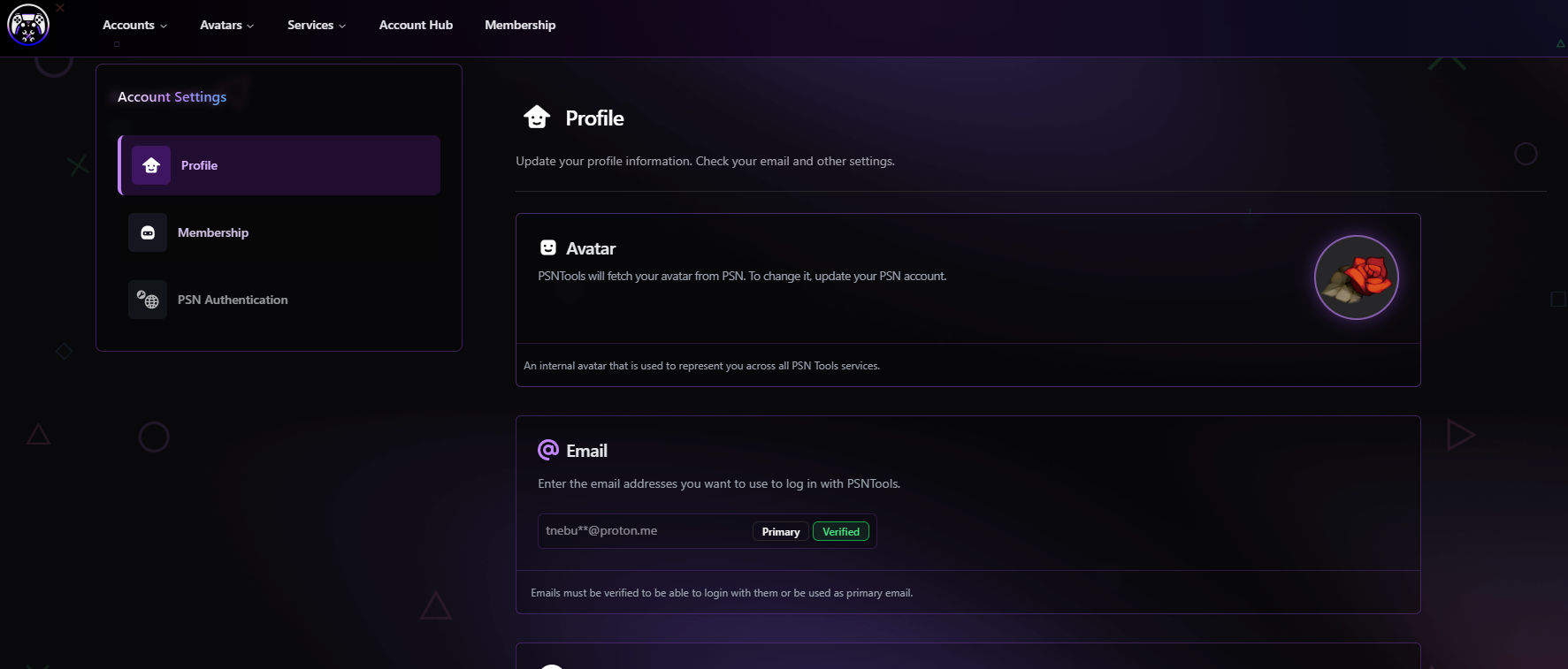
Step 4: Account Dashboard & Settings

Once you are verified, you’ll land on your account dashboard where you can manage your Profile, Membership, & PSN Authentication.

PSNTools account dashboard

To access your account settings, click your PlayStation avatar in the top-right corner & select Account Settings, or click to psntools.com/account/settings.

Account settings dropdown


NPSSO cookies expire after some time, but when they do, you’ll see a prompt on the PSN Authentication page asking you to sign out & sign back in on PlayStation.com again.

PSN Authentication, cookie expired

Once refreshed, you should see a confirmation that everything is working:

Authentication successful


Extras

Managing Your Membership

If you’ve purchased a PSNTools membership, the Membership tab shows your expiration date, membership status, billing type, & the features included with your plan. You can also redeem a membership code here.

PSNTools membership page


Deleting Your Account

If you want to unlink or permanently remove your PSNTools account, you can do so from the account settings. This will delete all of your personal data & any active memberships, proceed with caution.

Delete PSNTools account


Not AI

This post is licensed under CC BY 4.0 by the author.