How to Use PSN Checker
Learn how to use PSNTools' PSN Checker to look up PlayStation accounts by username or account ID. Covers advanced mode, search types, free vs paid features, and how to read the results.
Make sure your NPSSO cookie is fresh before using PSNTools. Sign out of PSN and sign back in if needed. NPSSO guide here.
What Is PSN Checker?
PSN Checker is a tool on PSNTools that lets you look up PlayStation accounts. You can search by username or account ID & get details like trophies, region, friends list, online ID history, & more.
If you haven’t made a PSNTools account yet, check out the guide on how to create one.
Step 1: Go to PSN Checker
Head over to the PSN Checker page.
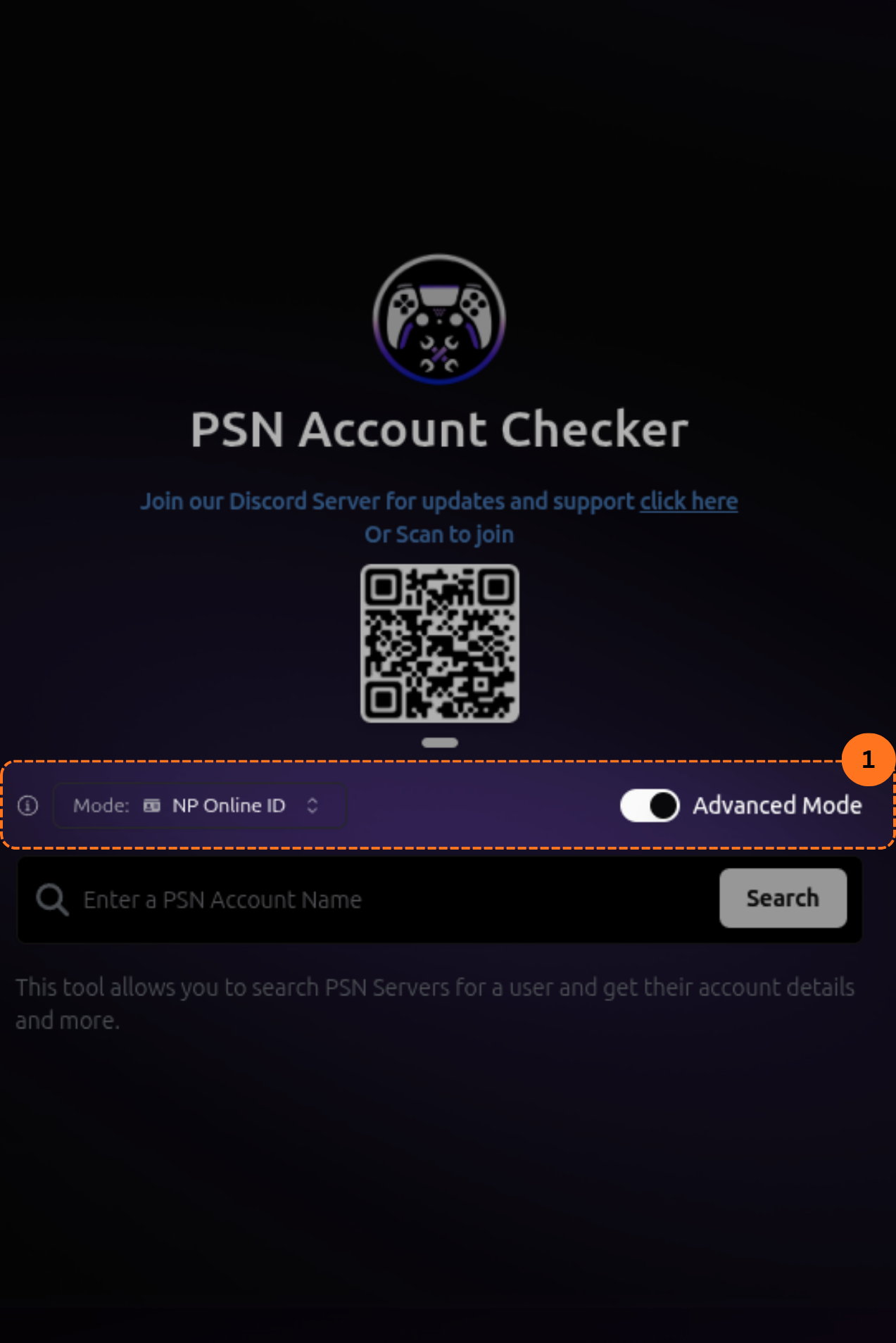
Step 2: Enable Advanced Mode
On the checker page, click or toggle Advanced Mode. Once enabled, it will default to NP Online mode
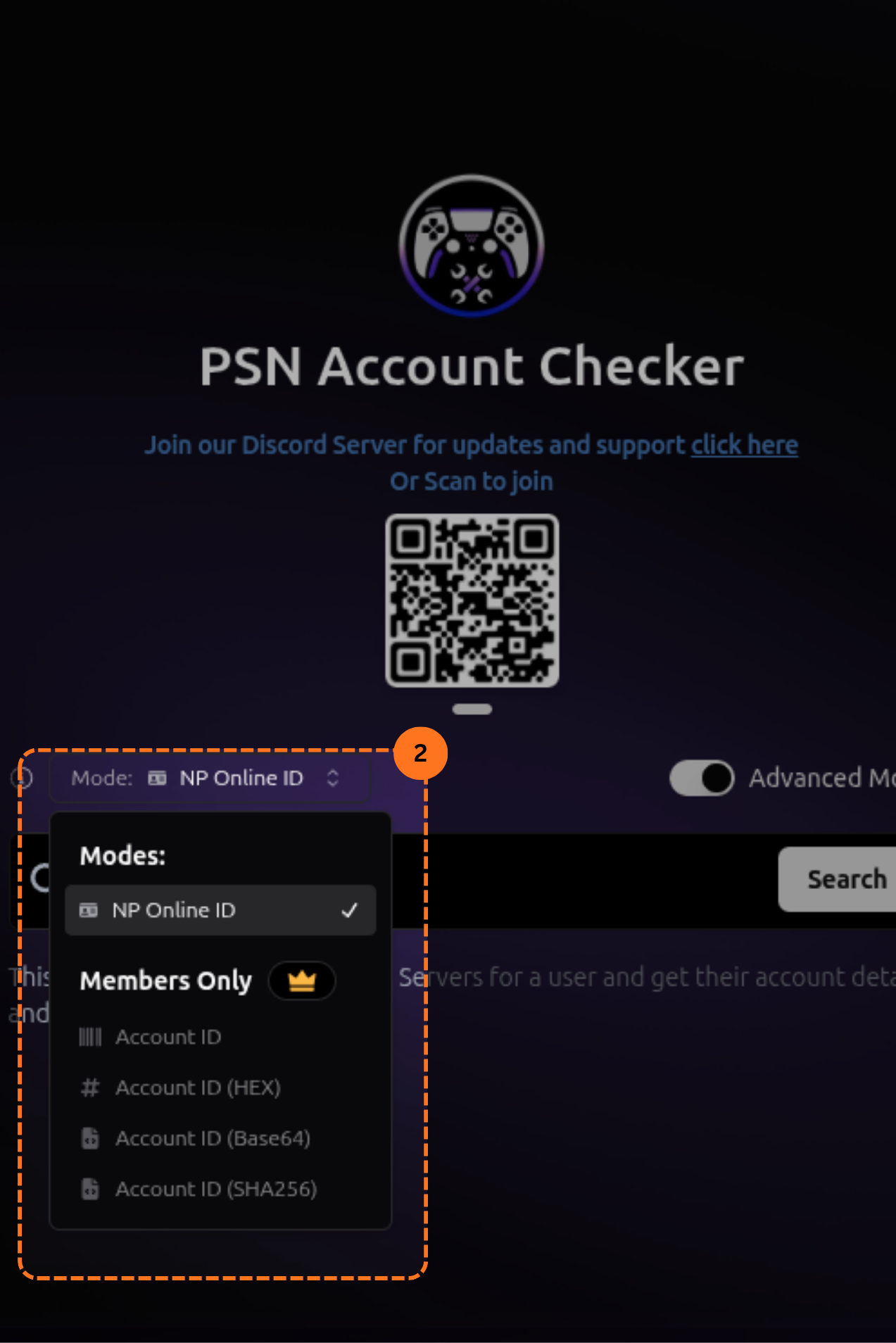
Step 3: Choose Your Search Type
If you have a PSNTools subscription, you get more search options. You can look up accounts by:
- Account ID
- Hex
- Base64
- SHA-256
Without a subscription, you can still search by username just fine.
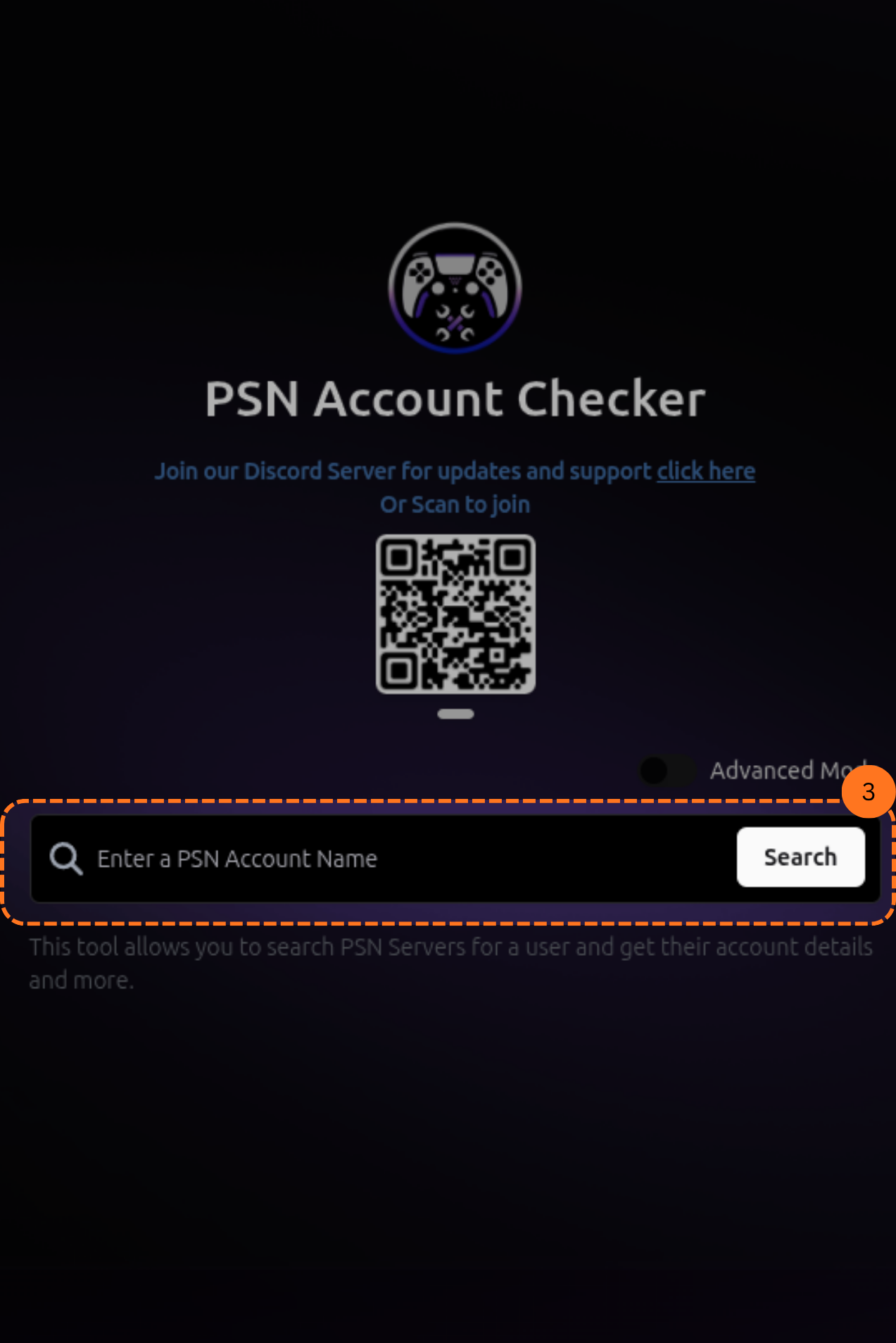
Step 4: Search for an Account
Type in the username or account ID you want to look up & hit search.
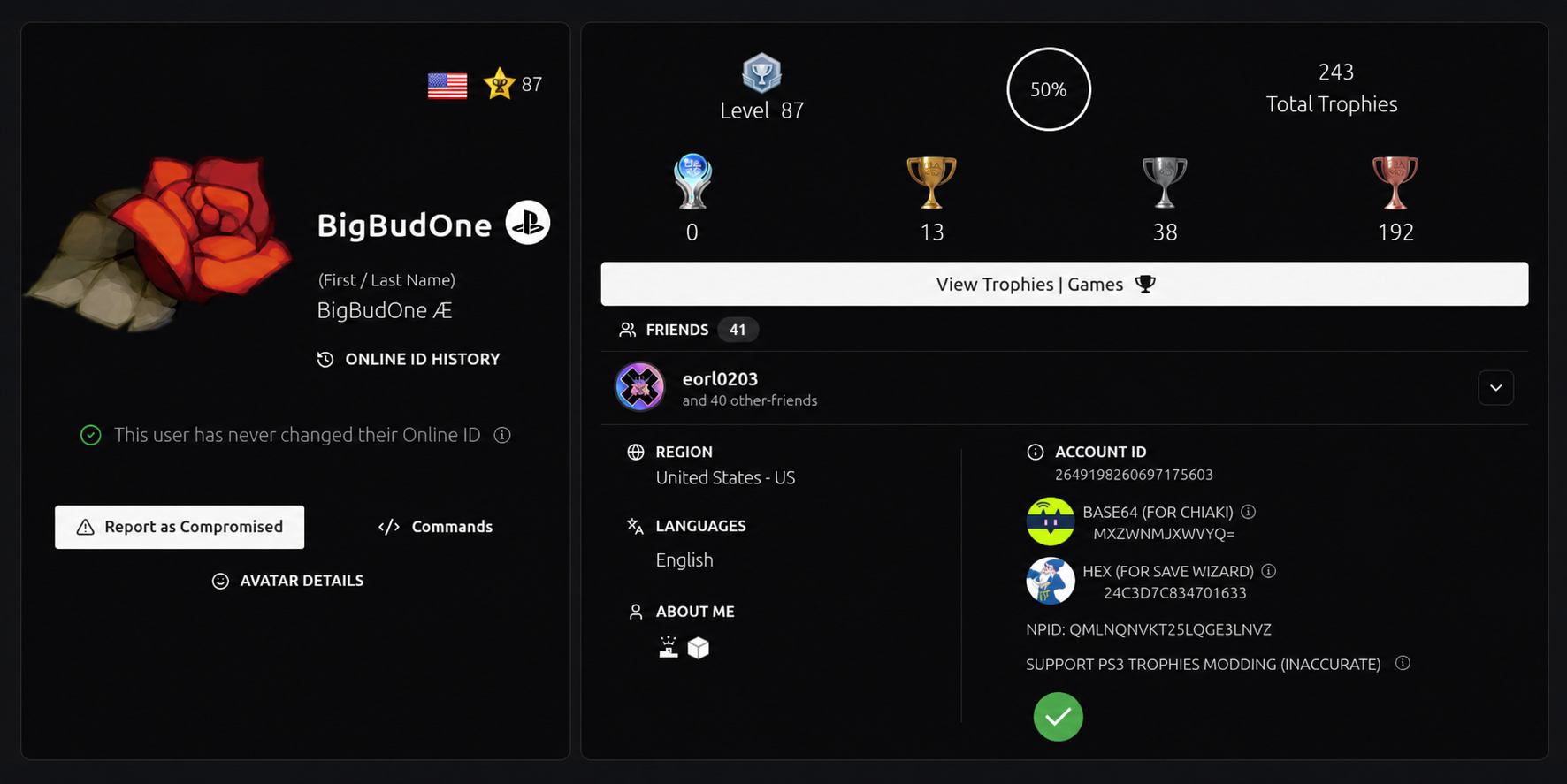
Step 5: Read the Results
After searching, you will see the account’s details. This includes:
- Username (online ID)
- First & last name
- Online ID history (shows if the user has ever changed their ID)
- Region
- Trophies
- Friends list
- Account level
Free vs Paid
With the free version of PSNTools, you can see the basics like the region, levels, trophies, friends list, & first & last name.
If you buy a subscription, you unlock a lot more like advanced search types, deeper account data, & other tools across the site.