How to Use PSNTools Purchase Analytics
Step-by-step guide on using PSNTools Purchase Analytics to view your PlayStation store spending report, including games, battle passes, & more.
How to Use PSNTools Purchase Analytics
Make sure your NPSSO cookie is fresh before using PSNTools. Sign out of PSN and sign back in if needed. NPSSO guide here.
Step 1: Go to Purchase Analytics
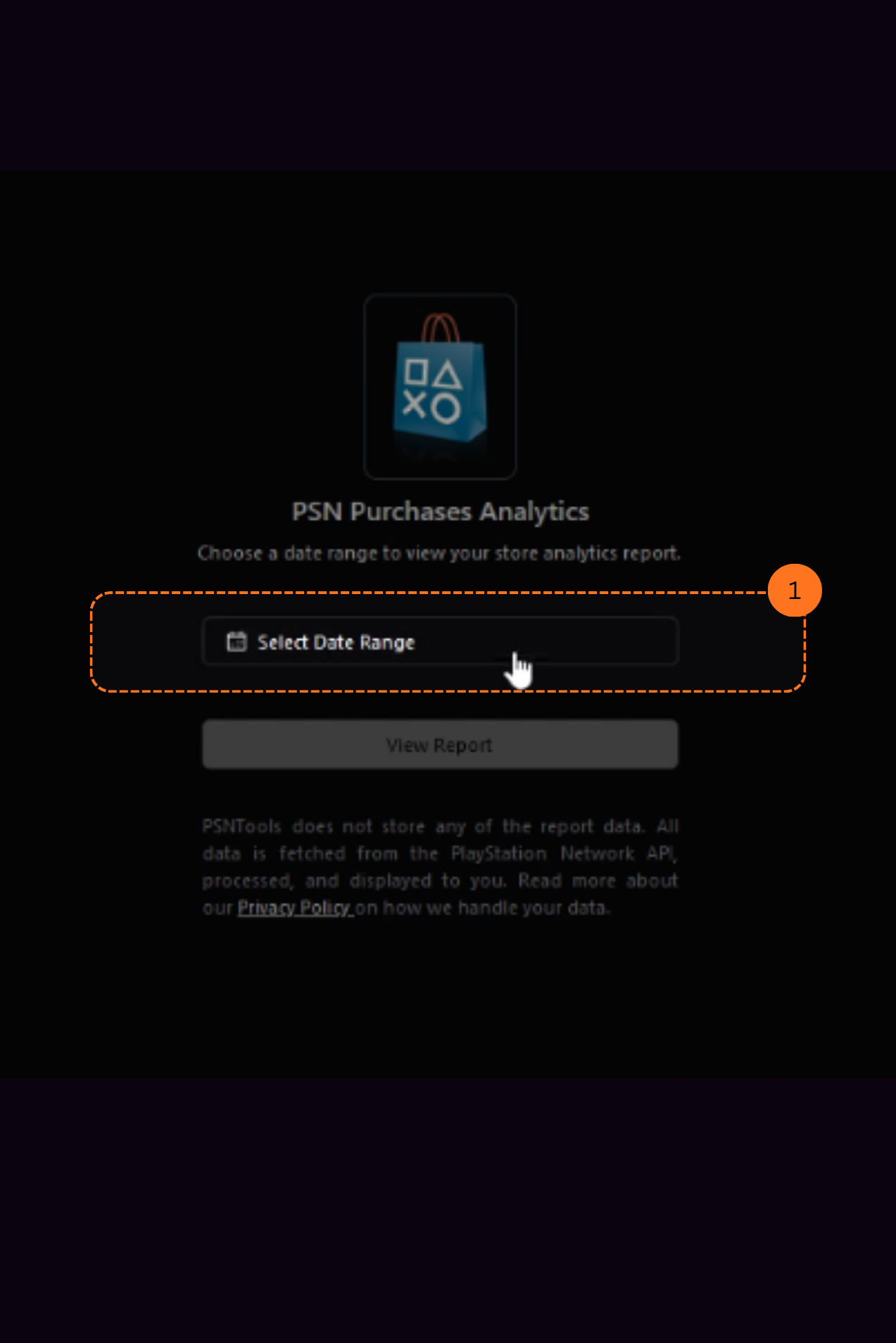
Head over to the Purchase Analytics page. Click the Select Date Range button.
Step 2: Choose a Date Range
After clicking, you will see several options:
- Beginning of the PSN store
- Since 9 years ago
- Since 6 years ago
- Since 3 years ago
- Or set a custom time in the date section below

Step 3: View Your Report
After selecting a date range, your store analytics report will show up. It includes how much you have spent on games, PSN Plus, & all kinds of purchases.

If you don’t have a PSNTools account yet, check out the guide on how to create one.
This post is licensed under CC BY 4.0 by the author.