How to Use PSNTools Profile Modder
Step-by-step guide on using PSNTools Profile Modder to customize your PlayStation profile: reset your avatar, change background image & color, edit your about me, & add custom symbols to your real name.
Make sure your NPSSO cookie is fresh before using PSNTools. Sign out of PSN and sign back in if needed. NPSSO guide here.
Step 1: Go to PSN Profile Modder
Head over to the PSNTools homepage and find the PSN Profile Modder section. Click it to get started.
Step 2: Reset Your Avatar
After clicking Profile Modder, it will ask you to load your profile.
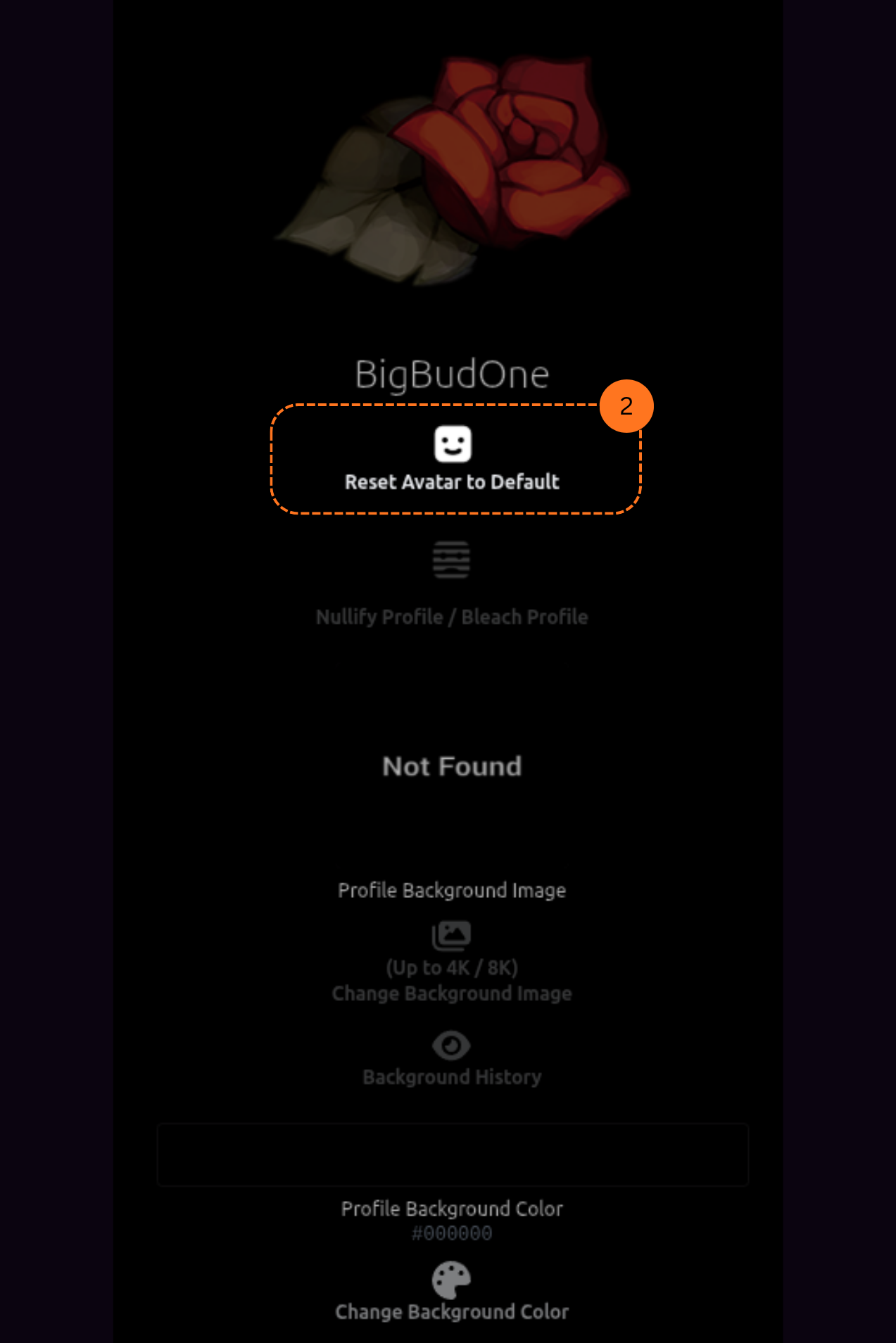
You can reset your avatar to default. This lets you get the default PlayStation avatar. The same one you get when creating a brand new account.
Step 3: Change Your Background Image
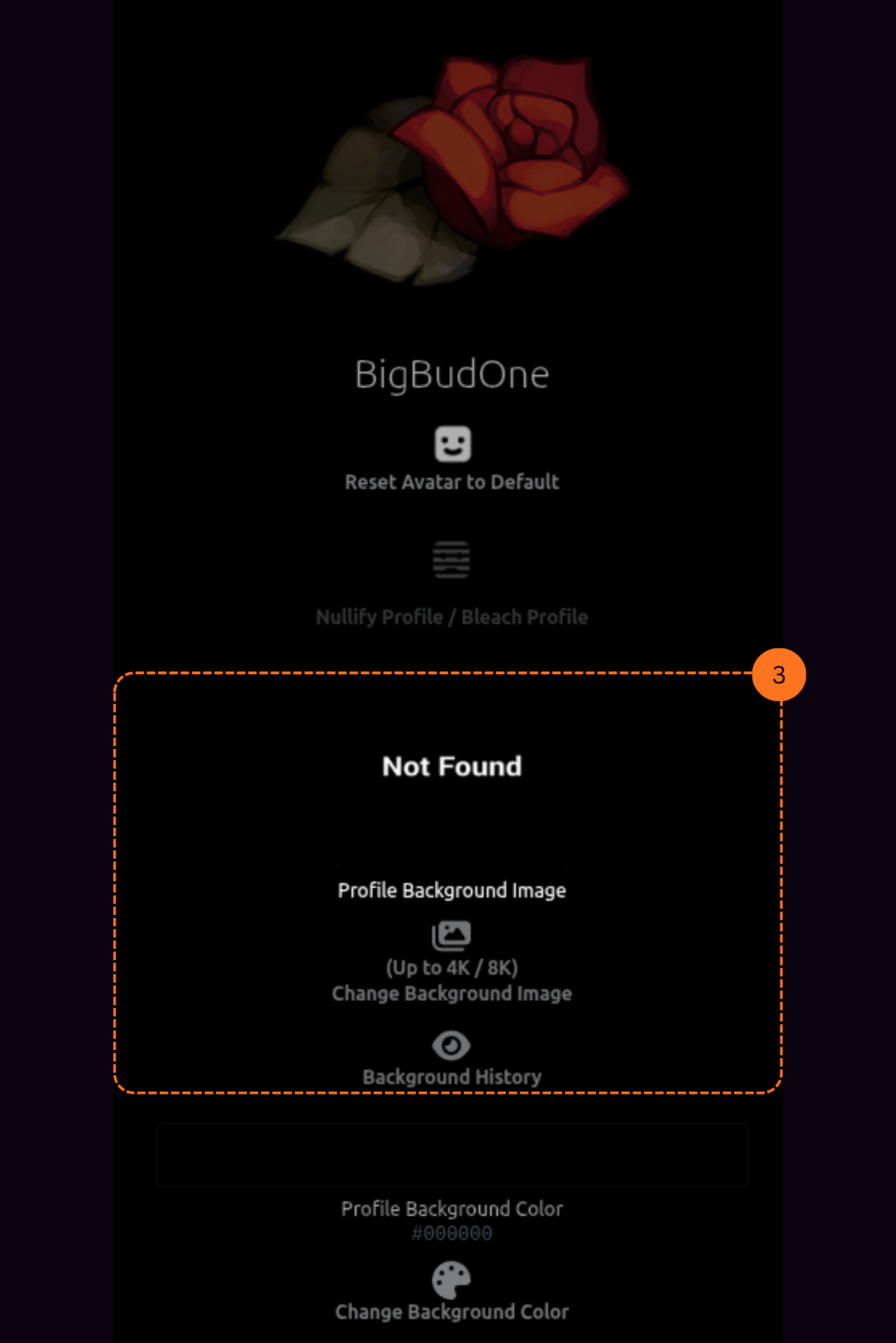
You can also change your profile background image. You will be able to browse your background history and pick from previous backgrounds you have used.
Step 4: Change Your Profile Background Color
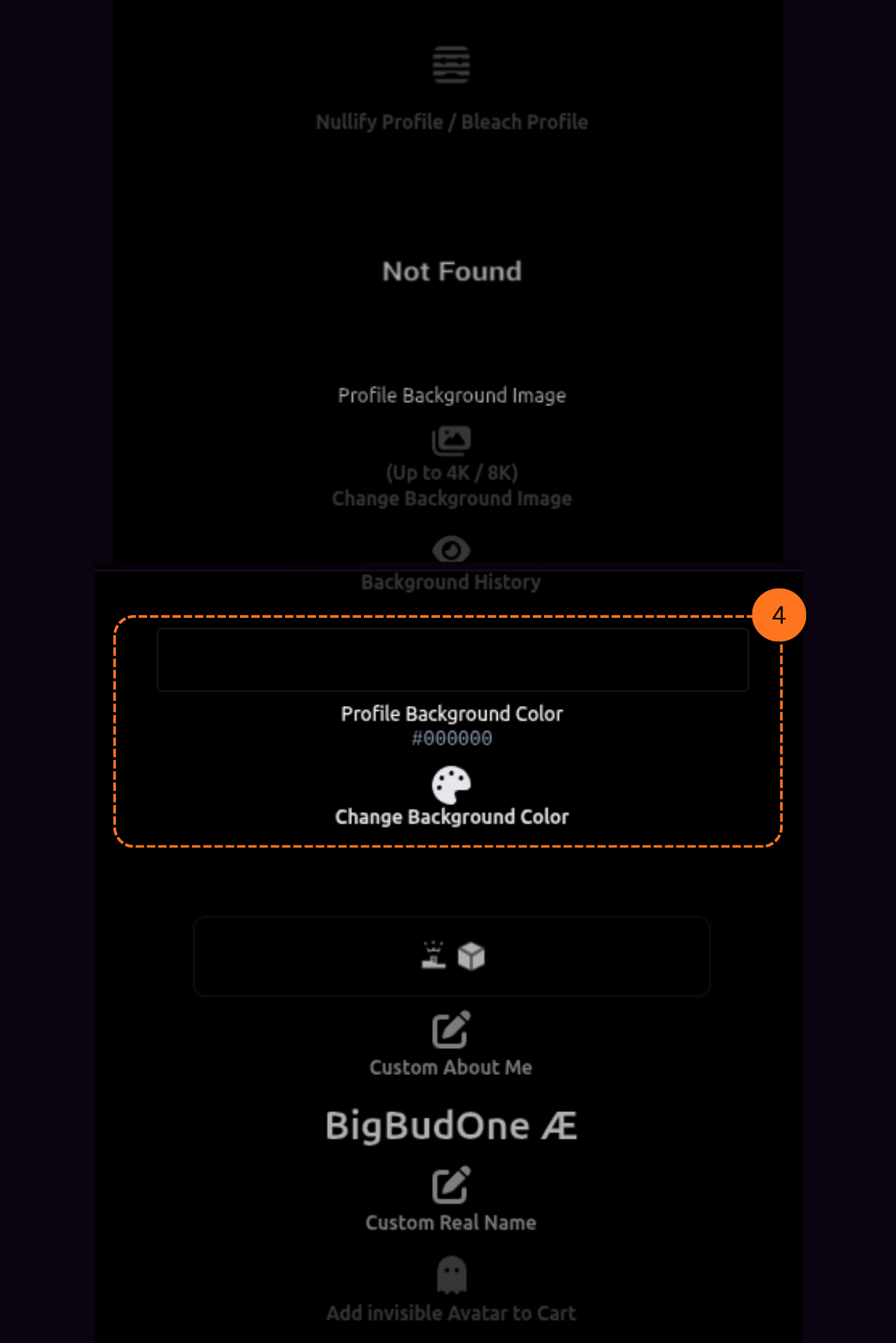
You can change your profile background color. Pick any color you want to customize your profile look.
This feature only works on PS4, not PS5.
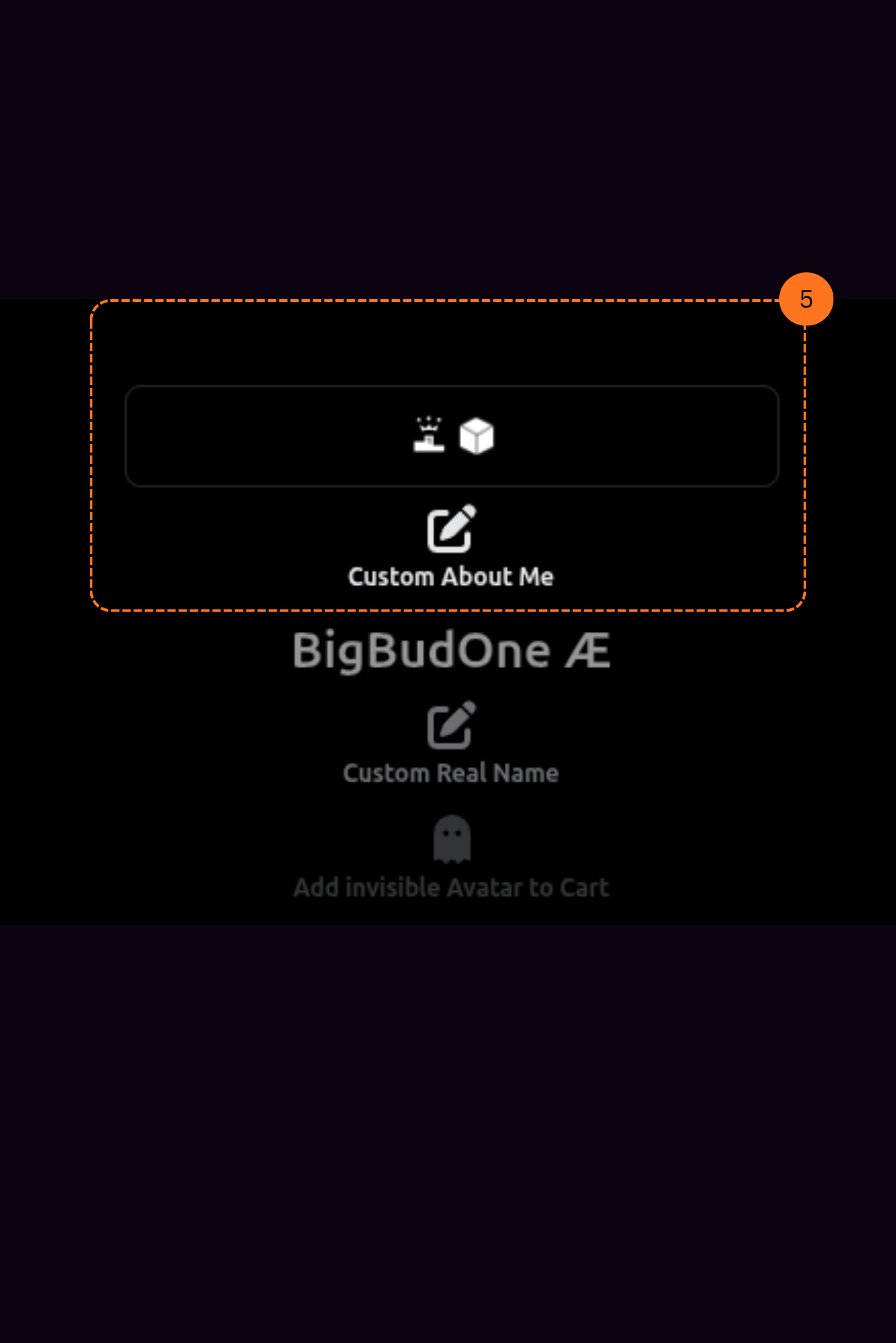
Step 5: Customize Your About Me
You can edit your custom about me section. Add symbols, special characters, and whatever text you want to show on your profile.
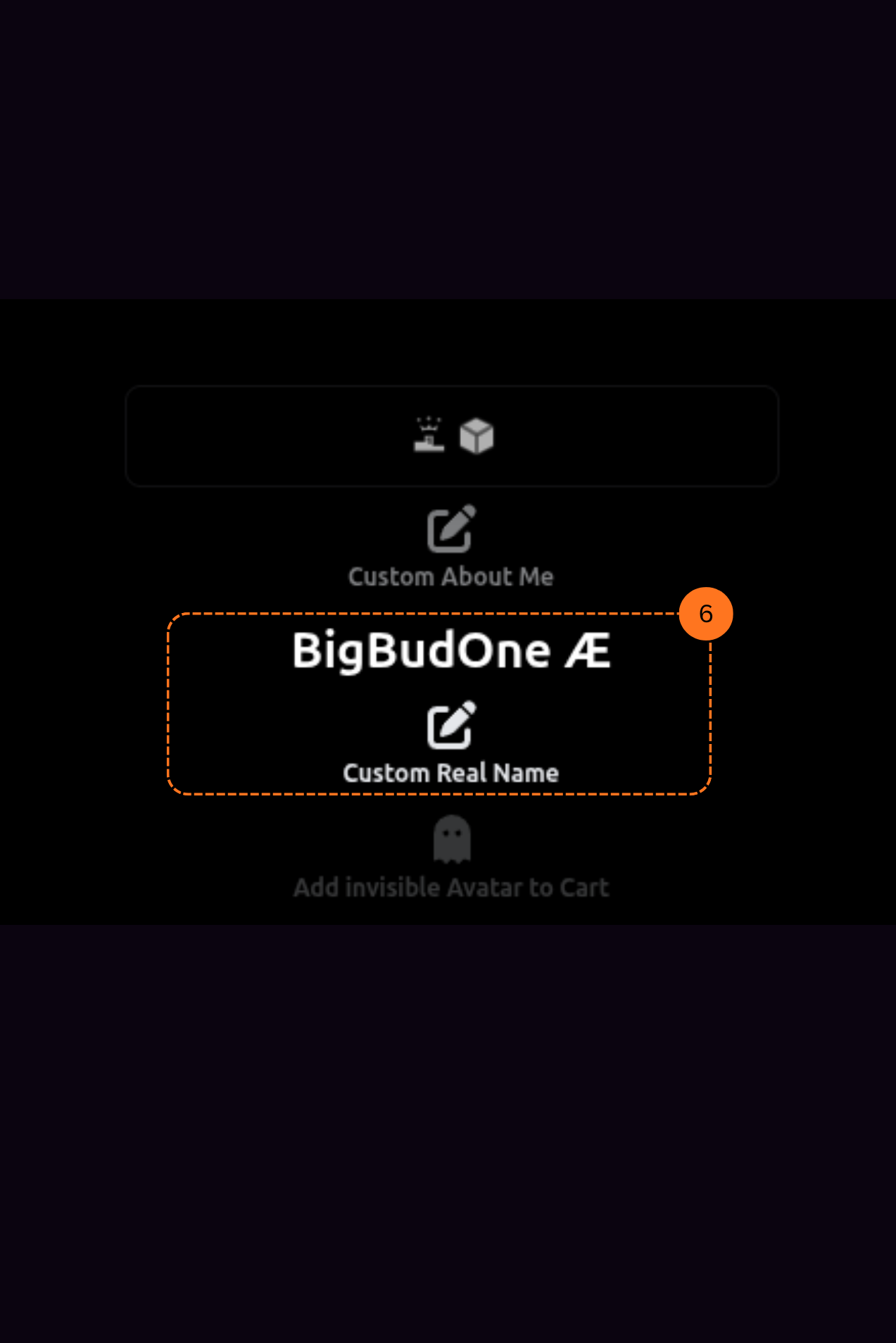
Step 6: Customize Your Real Name
You can also customize your real name field. Add specific custom symbols and text to personalize how your name appears.
If you don’t have a PSNTools account yet, check out the guide on how to create one.